Managing Your Library
The Library gives you a curated catalog of skill and method templates you can add to your workspace with a single click.
Overview
The Library tab sits alongside Skills and Methods in the same navigation. It is a read-only collection of pre-written templates organized into collections and categories. None of the templates are active in your workspace until you choose to add them. Once you add a template, it becomes a real skill or method in your workspace that you can activate, deactivate, edit, and use like any other.
The Library is the fastest way to build out your workspace's knowledge base.
Rather than writing every skill and method from scratch, you start from templates that already have a title, a description, and a category. You then fill in your team's specific details in the editor.
This feature may need to be enabled for your workspace.
How It Works
-
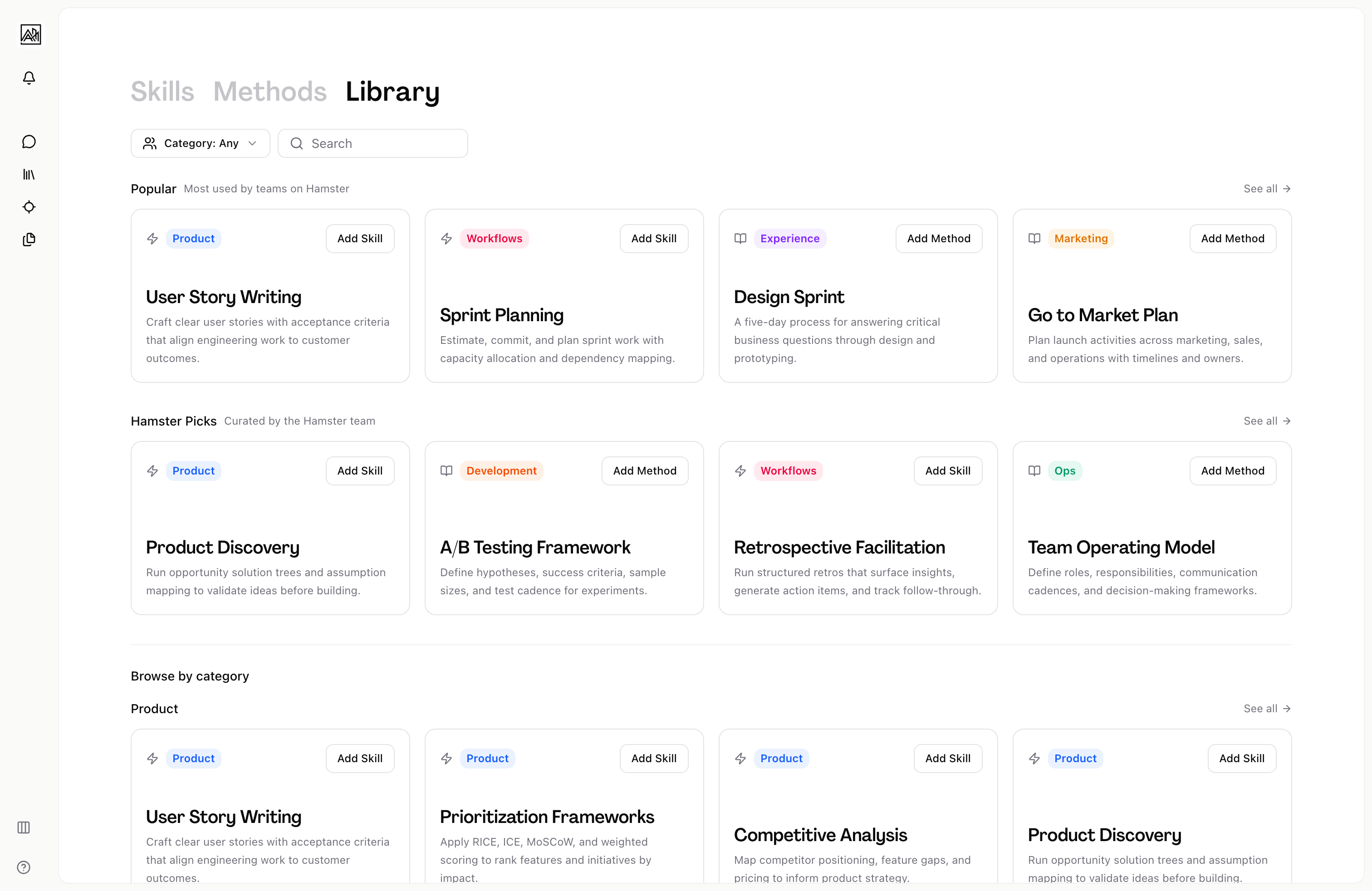
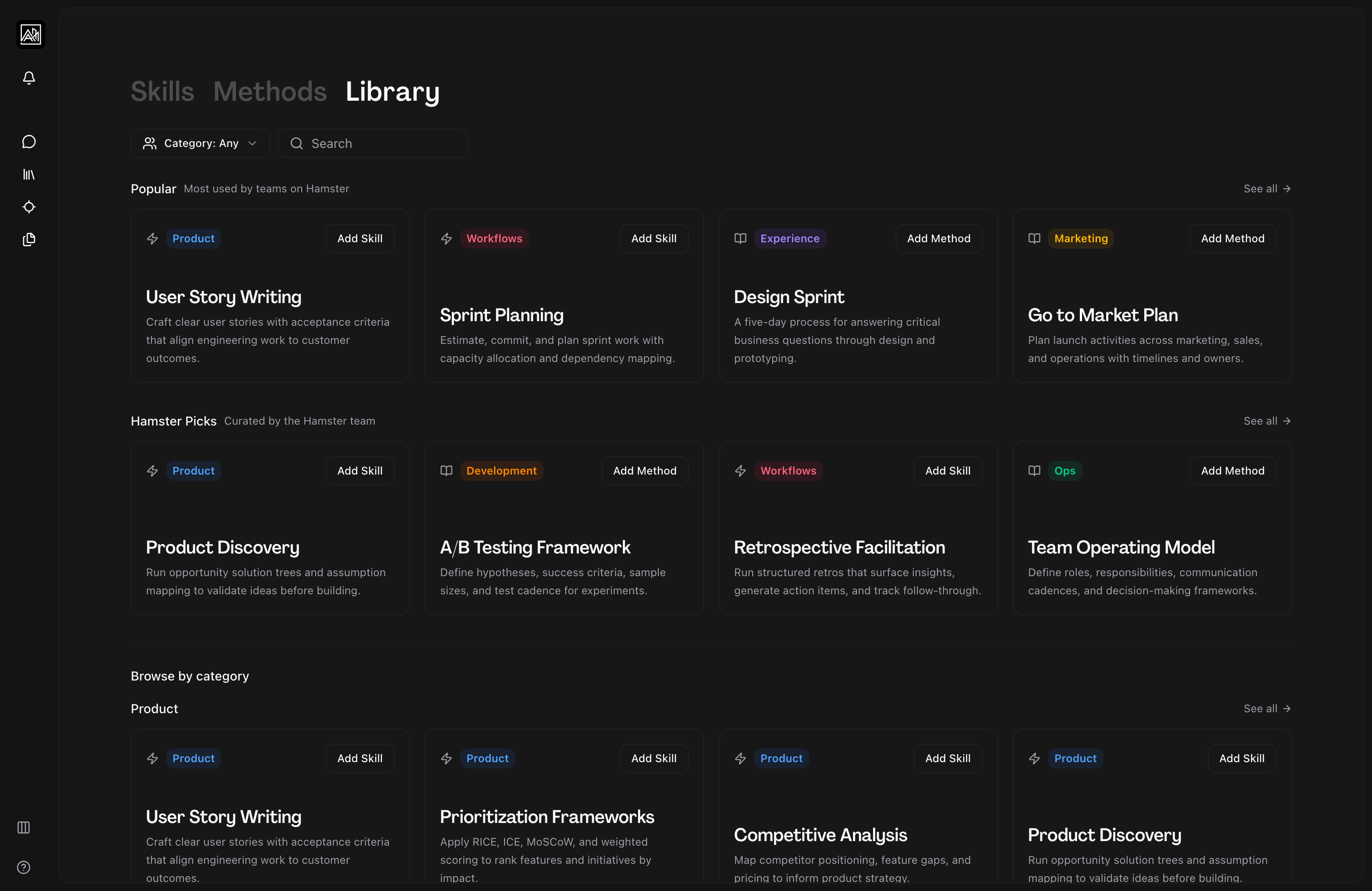
Open the Library tab — Click "Library" in the navigation at the top of the Skills or Methods page. The Library opens in browse mode, showing curated collections and a "Browse by category" section.
-
Browse collections — Two curated collections appear at the top: "Popular" (the most-used templates across teams on Hamster) and "Hamster Picks" (curated by the Hamster team). Each collection shows up to four templates. Click "See all" to expand a collection and view every template in it.
-
Browse by category — Below the collections, templates are grouped by category: Product, Ops, Experience, Development, Marketing, and Workflows. Each group shows up to four templates with a "See all" link for the full list.
-
Preview a template — Click any template card to open a preview. The preview shows the full title, category, type (skill or method), and description. You can add the template to your workspace directly from the preview.
-
Add a template — Click "Add Skill" or "Add Method" on any card or in the preview to add it. The template is immediately created in your workspace as an active skill or method. A confirmation toast appears when the addition is successful.
-
Filter the Library — Use the search field to find templates by title or description. Use the Category dropdown to show only templates from one category. Use the "Skills only" or "Methods only" filter button when it appears to narrow by type.
-
Switch to table view — Click Display and select Table to view the Library as a compact list. This is useful when searching or scanning a large number of templates.
Activating and Deactivating Items
Once you have added items to your workspace, you manage their active state from the Skills or Methods tab, not from the Library itself.
Each card on the Skills and Methods pages shows a toggle switch in the top-right corner:
- Active (toggle on): The skill or method is available to Hamster Studio and referenced when providing guidance.
- Inactive (toggle off): The item remains in your workspace but is not referenced. Deactivating is non-destructive — you can re-activate at any time.
New items default to active when added from the Library or created from scratch. There is no confirmation step — the toggle takes effect immediately.
To see which items are currently inactive, use the Group by "Active / Inactive" option in the Display settings on the Skills or Methods tab.
Customizing Templates
Templates added from the Library are initially linked to the Hamster-provided source. The card shows a globe icon to indicate this.
When you want to adapt a template to your team's specific practices:
- Open the card's overflow menu (three-dot icon).
- Select "Edit (create your version)."
- The edit dialog opens, where you can change the title, description, and category.
- After saving, the card shows a pen icon indicating you now have a customized version.
Customizing a template does not affect other workspaces. Your version is private to your workspace.
You can also open any skill or method directly in the editor (by clicking on its card) to write detailed content — this is separate from the title and description shown on the card.
Organizing with Categories
Categories help you audit and navigate your workspace's knowledge base. All skills and methods share the same six categories:
- Product — Product management, prioritization, discovery, metrics
- Ops — Operational processes, planning, vendor management, onboarding
- Experience — UX research, design, accessibility, design systems
- Development — Engineering practices, code review, incidents, performance
- Marketing — Campaigns, content, social media, brand
- Workflows — Team rituals, sprint processes, collaboration patterns
Use the Category dropdown on the Skills or Methods tab to filter to a single category. Use "Group by: Category" in the Display settings to see all categories at once with their items grouped beneath each heading.
Categories are set when you create or edit an item, or inherited from a template. You can change a category at any time by editing the item.
Display Preferences
The Skills, Methods, and Library tabs each save your display preferences independently. Preferences are saved automatically and restored on your next visit.
On Skills and Methods you can control view (Cards or Table), order (Newest, Oldest, A to Z), and group by (None, Category, Active/Inactive, or Source). On the Library tab, order defaults to Popular.
Tips
- When you have fewer than eight active skills or methods, the Skills and Methods pages show a "Recommended" section based on categories you already use — a fast way to discover additions without opening the Library.
- Adding a template and editing its description is faster than writing from scratch. Start with the template structure; replace the text with your team's specifics.
- Use the "Source" group-by option to separate customized items from Hamster-provided templates. Useful for periodic knowledge base reviews.
- If you remove an item and want it back later, return to the Library and add the template again.