Understanding Plans
Everything in the Plan tab — how Tasks are structured, how to read and organize them, and how to hand the Plan off for delivery.
Overview
A Plan is a two-level hierarchy of Tasks attached to a brief. The top level contains parent Tasks that represent the major areas of work. Each parent Task contains subtasks — the individual units of work with detailed descriptions and acceptance criteria. Plans are designed to be reviewed, adjusted, and then delivered through Cloud Agents, Cursor Agents, OpenAI Agents, or the Hamster plugin.

Task Hierarchy
Parent Tasks represent distinct areas of work within the scope of the brief. Each parent Task has a title, description, and a set of subtasks. Parent Tasks are created first during Plan generation and appear in the Plan view as soon as they are ready.
Subtasks are the detailed steps inside each parent task. Each subtask is generated with:
- A title and description scoped tightly to the parent Task
- Acceptance criteria that define when the work is complete
- A complexity score that indicates how much effort the Task requires
Subtasks are elaborated in parallel — each parent Task is expanded at the same time. They appear progressively as each elaboration thread finishes.
Reading the Plan
Task status
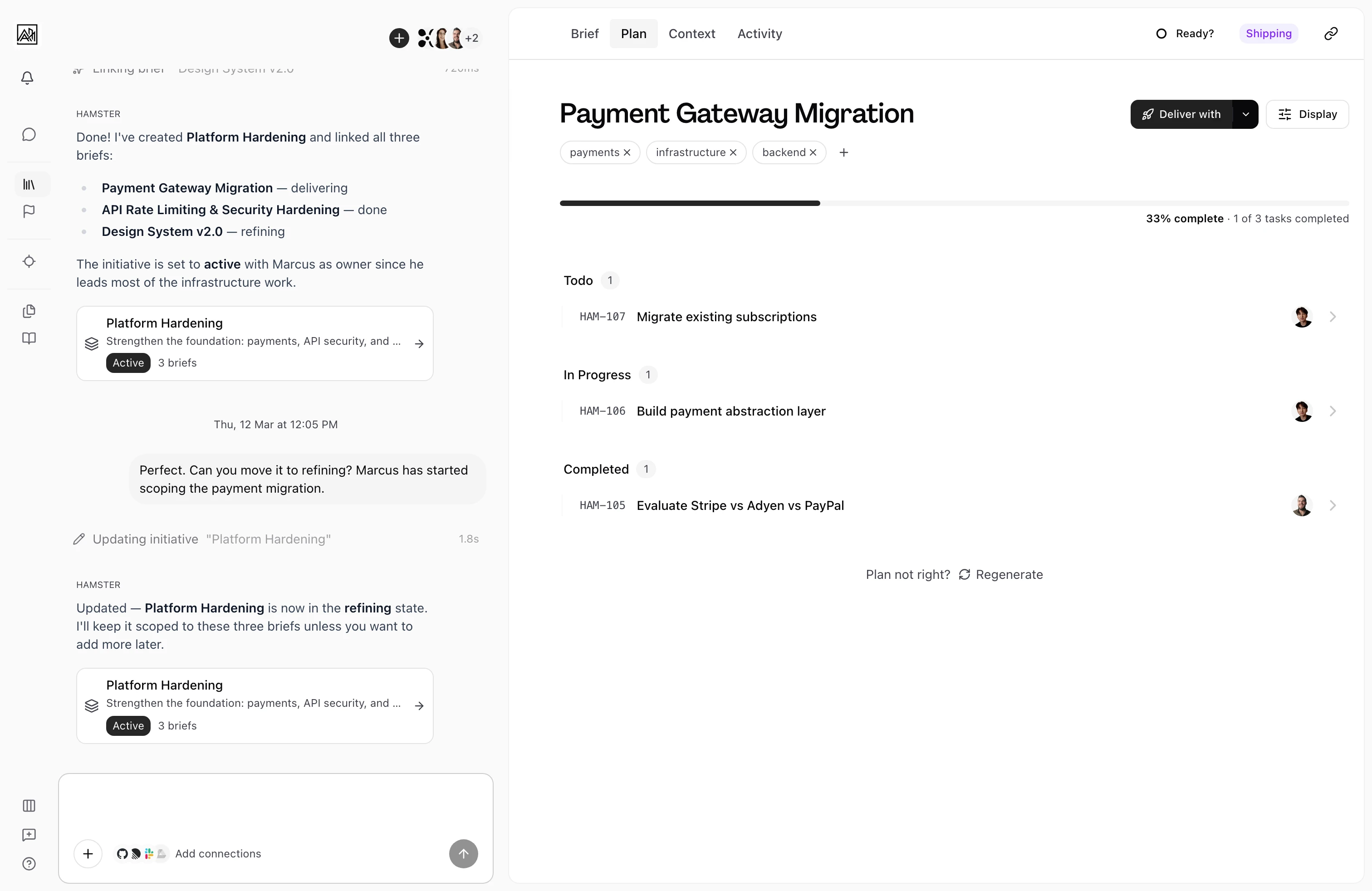
Every Task and subtask can be in one of three states:
- Todo — Work has not started
- In Progress — Work is underway
- Done — Work is complete
You can move Tasks between states from the Plan view. When grouped by status, the Task list is organized into sections by state so you can see what is in progress at a glance.
Complexity badge
Tasks show a complexity badge based on the AI's assessment during generation. The badge gives a rough indication of effort — useful for spotting which Tasks are likely to take the most time and for planning assignments.
Next best task
One Task in the Plan is marked as the next best Task to work on. This is the highest-priority in-progress Task if one exists, otherwise the first to-do task. It is marked with a small indicator in the Task row to help you and your team quickly orient when picking up work.
Task detail view
Clicking a Task opens the full detail view. Here you can read the complete Task description and acceptance criteria, see all subtasks, and interact with the Task's AI conversation thread for deeper context on what was generated and why.
View Options
The Display button in the top-right corner of the Plan tab gives you control over how Tasks are shown.
View mode:
- List — A vertical list of tasks. Parent Tasks show an expand/collapse control to show or hide their subtasks inline.
- Kanban — A board view with columns for Todo, In Progress, and Done. Parent Tasks appear as cards you can drag between columns.
Group by:
- None — Tasks are shown in a single flat list ordered by position
- Status — Tasks are grouped into sections by their current state
Organizing Tasks
You can reorder parent Tasks by dragging them within the list view. The order you set is preserved when the Plan is delivered. Moving a Task to a different status group (when grouped by status) updates its status automatically.
Refining the Plan with Chat
On the Plan tab, the Brief's chat stays docked beside the plan. Use it to make targeted adjustments after generation without regenerating from scratch:
- Ask the AI to split a parent Task that covers too much ground
- Request a missing subtask for a concern the Plan overlooked
- Ask it to rewrite acceptance criteria for a specific Task
- Request a scope change to a Task description
The AI reads the current Plan state — all existing Tasks and their content — before making any changes. It updates Tasks directly rather than producing suggestions for you to apply manually.
Expanding Tasks with AI
If a parent Task does not have subtasks, or you want to generate additional subtasks after the initial Plan, you can expand it using the sparkle icon that appears when you hover the Task title. The AI elaborates the Task into subtasks using the same context from the Brief, the parent Task description, and the sibling Tasks to avoid overlap.
Assigning Tasks
You can assign any Task or subtask to a team member using the assignee control in the Task row. If your workspace has background AI agents configured, you can also assign Tasks directly to an agent.
Delivering the Plan
Click Deliver in the Plan tab header to deliver with the method from your delivery settings. The chevron beside it lists the methods your workspace offers for this run, such as Install Hamster, Hamster Cloud, Cursor Agents, and OpenAI Agents. See Delivering Briefs to choose one.
Deliver with Cloud Agents
With Hamster Cloud, Hamster runs an AI agent through your Plan in a Cloud Agent. It then opens a pull request on GitHub or Cursor Origin, or a merge request on GitLab. Cursor Agents and OpenAI Agents hand the Plan to a coding agent you connect with your own key, and a pull request comes back on GitHub. Your machine doesn't need to be running — just click and come back to a PR.
The button shows a spinner and stays disabled while a run is active. The state persists across page refreshes and browser tabs so you always know whether a Delivery is in progress.
You can also kick off delivery straight from the plan-generation chat thread — once the plan is ready, ask Hamster to deliver and a Delivering card tracks Cloud Agents working through it.
See Cloud Agents for the full guide.
Deliver with the Hamster plugin
For hands-on Delivery — working in your own checkout or handing the Plan to your coding agent — open the Brief's Deliver menu and choose Install Hamster. That copies a prompt you paste into your AI coding agent: it installs the Hamster plugin if you don't have it yet, then delivers this Brief from your own checkout.
You can also run a targeted sync yourself:
hamster sync <brief-id-or-url>
From there:
hamster task list
hamster task next
hamster task get HAM-123
hamster task status <id> <status>
See Using the CLI and CLI Sync.
Tips
-
Review the parent Tasks first before drilling into subtasks. If a parent Task's scope seems off, edit the Brief to clarify the intent and regenerate rather than manually reworking many subtasks.
-
Use the list view grouped by status when running a standup or checking team progress — it gives a clear picture of what is moving and what is blocked.
-
The kanban view works well for individual workflow management. Dragging cards between columns updates Task status in real time.
-
Complexity scores are relative within a Plan, not absolute estimates. Use them to identify Tasks that may need to be broken down further or assigned to more experienced team members.