Blueprint Editor
Write, edit, and refine your organizational context in a full-featured document editor with built-in AI assistance.
Overview
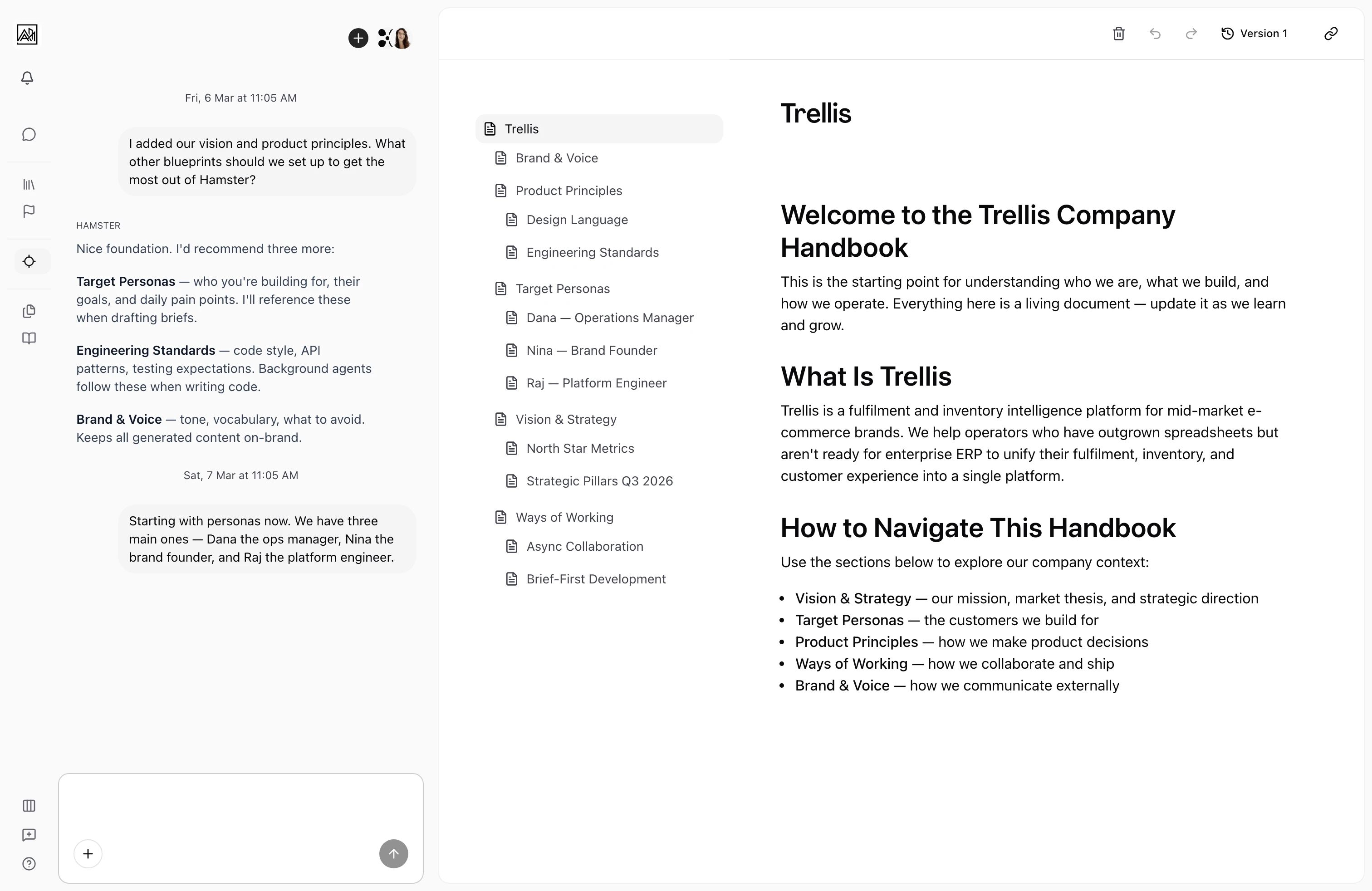
The Blueprint editor is where you build and maintain your company's documented knowledge. It provides a rich text writing environment alongside the global docked chat window, which understands the content of the document you are editing. Changes are collaborative — multiple team members can edit the same Blueprint at the same time, and all edits sync in real time. The editor is one full-width card holding two resizable panels: the Blueprint tree on the left, your document content on the right.

How It Works
-
Open a Blueprint — Click any document in the left navigation tree. The editor loads the document content and the docked chat window connects to that document's context.
-
Write and edit content — The editor supports rich text: headings, paragraphs, bullet lists, numbered lists, bold, italic, and more. Click anywhere in the body area and start typing. All formatting is applied inline.
-
Edit the title — Click the title at the top of the document to rename it. The title updates across the navigation tree as you type and saves when you move focus away.
-
Use AI chat — The docked chat window is connected to this specific blueprint. Ask questions, request rewrites, or get suggestions. The AI has full access to the document you are currently editing, so it can reference what you have written and propose changes in context.
-
Collaborate with your team — If another team member opens the same Blueprint, their cursor appears in the document. Edits from all active participants merge in real time — you never need to manually refresh to see updates.
-
See the Connection status — A status indicator shows whether the editor is connected and syncing. If you go offline, your changes queue locally and sync when the Connection is restored.
Ask the docked chat to pull in grounded context, and Hamster proposes the change as an inline diff with Reject and Accept affordances — one click folds it into the document.
Key Capabilities
-
Rich text editing: Format your content with headings (H1–H3), paragraphs, bold, italic, bullet lists, numbered lists, and inline code. The toolbar appears when you select text.
-
Inline title editing: The document title is editable directly on the page. It does not live in a settings panel or a form — just click and type.
-
Real-time collaboration: All edits sync live across all users who have the document open. User presence is visible, so you can see who else is working on the document.
-
Docked AI chat: The global chat window attaches to each blueprint. The AI reads the full content of the document and uses it when responding. You can ask it to suggest content, check for gaps, or draft new sections.
-
Refine in place: Highlight text in the blueprint and click Refine to rewrite that passage. The AI focuses on just that section while preserving the rest of the document intact.
-
Auto-generated descriptions: As you write, Hamster Studio generates and updates a short description of the document in the background. This description appears in search Results and is used by the AI when referencing your Blueprints from other parts of the product.
-
Collapsible tree: Below 1280px the document navigation panel auto-collapses to a narrow icon rail. Below 1024px it leaves the card altogether and opens as an overlay from the Blueprints button.
-
Delete from the editor: The document action menu (accessible from the header) includes a delete option. Deleting a document with children removes the document and redirects to its parent.
When the Blueprint-sync Routine is enabled, accepting a Blueprint edit can trigger the routine to create an Initiative and stage the child Briefs needed to deliver the change. Ordinary edits do not fan out on their own.
The Two-Panel Layout
The editor is one full-width card split into two resizable panels:
- Left — Document tree: The navigation panel showing the full Blueprint hierarchy. Drag the divider to resize it.
- Right — Document content: The editing canvas for the current document.
Chat is the global docked window rather than a panel here, so it stays on whichever side you set under Preferences.
Tips
- Keep individual documents focused. A Blueprint called "Personas" that covers only user personas is easier for the AI to reference accurately than a single massive document that covers everything.
- Use the AI chat to draft initial content. Describe what the document should cover and ask the AI to write a first draft. Then edit it to match your exact language and context.
- The auto-generated description is visible to team members in search results. Write enough content in each document that the AI can produce a meaningful summary.
- If you are editing alongside teammates, watch the Connection status indicator. A "connected" status means your edits are syncing live.