Creating Blueprints
Start documenting your company's context with a root Blueprint, then expand it into a structured hierarchy of child documents.
Overview
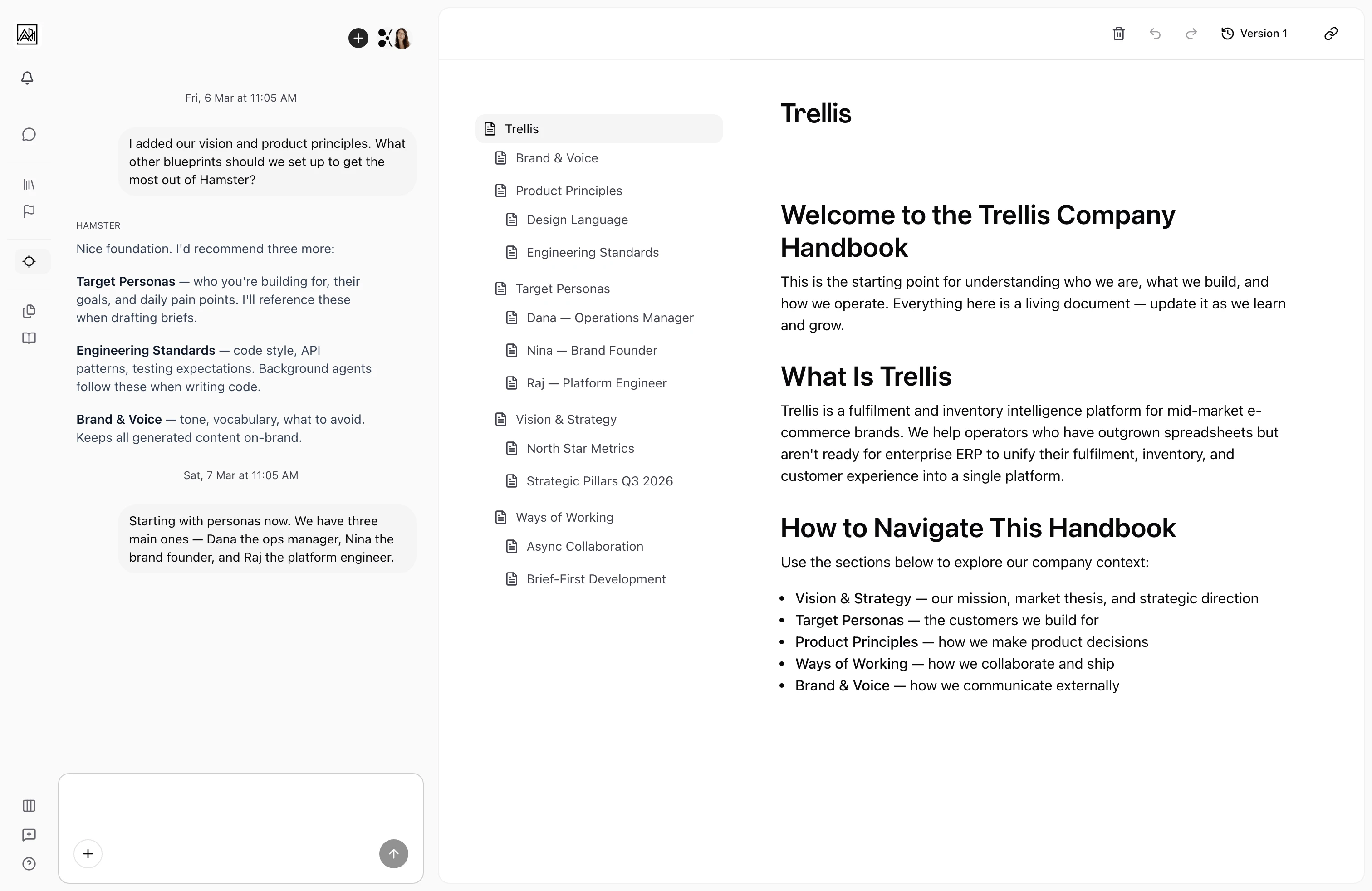
A Blueprint is a document your whole team shares. It can cover anything that grounds your work — product vision, target personas, strategic goals, brand voice, or team norms. You start with a single root document and grow it into as many child documents as you need. Each document you add becomes part of the same connected tree, and all of it feeds into the AI's understanding of your organization.

How It Works
-
Open the Blueprints section — Select Blueprints from the sidebar. If your workspace has no Blueprints yet, a welcome screen explains the feature and offers a button to create your first one.
-
Create your first Blueprint — Click "New Blueprint" to open the creation dialog. Enter a title (required) and an optional description that summarizes what the document covers. Click Create.
-
Land in the editor — Hamster Studio opens the new document immediately. The editor is ready for you to start writing. The document title is editable inline at the top.
-
Add child documents — Once you have a root document, you can add sub-documents beneath it. Hover over any document in the left navigation panel and click the add button that appears. Child documents inherit the same tree and are visible in the navigation panel.
-
Keep building — There is no limit on depth or the number of documents. Build the structure that makes sense for your team — a flat list of top-level documents, or a nested hierarchy with sections and sub-sections.
You can also ask Hamster in chat to draft a Blueprint from existing Briefs and workspace documents. Open the created Blueprint to review and continue shaping it.
After a Blueprint is created, the AI posts a personalized next-step suggestion in the blueprint's own chat — usually 2–3 actionable chips like "Add team structure," "Document decision criteria," or "Outline the feature model." These suggestions self-dismiss once you interact with them or move to other work.
Key Capabilities
-
Title and description: Every Blueprint has a title (shown in navigation and page headers) and an optional description used as a summary when the AI references it.
-
Root and child documents: Create a document at the top level with "New blueprint", inside a folder, or as a child of an existing document.
-
Inline title editing: Click the document title in the editor to rename it. Changes save automatically and update the navigation tree in real time.
-
Immediate navigation: After creating a Blueprint, you land directly in the editor. No extra steps needed.
-
Deletion: You can delete any Blueprint document from within the editor. If you delete a document that has a parent, you return to the parent. If you delete a root document, you return to the Blueprints list.
Tips
- Start broad. Your first Blueprint might be a single document called "Company Overview" — you can always break it into sub-documents later as the content grows.
- Use the description field when creating a document. The AI uses descriptions to understand what each document is about, even before you have written the full content.
- You do not need to populate everything before Blueprints become useful. Even a few paragraphs of product context will immediately improve Brief and Plan quality.