Organizing Blueprints
Keep workspace knowledge scannable with folders, then use Blueprint relationships when one document belongs under another.
Overview
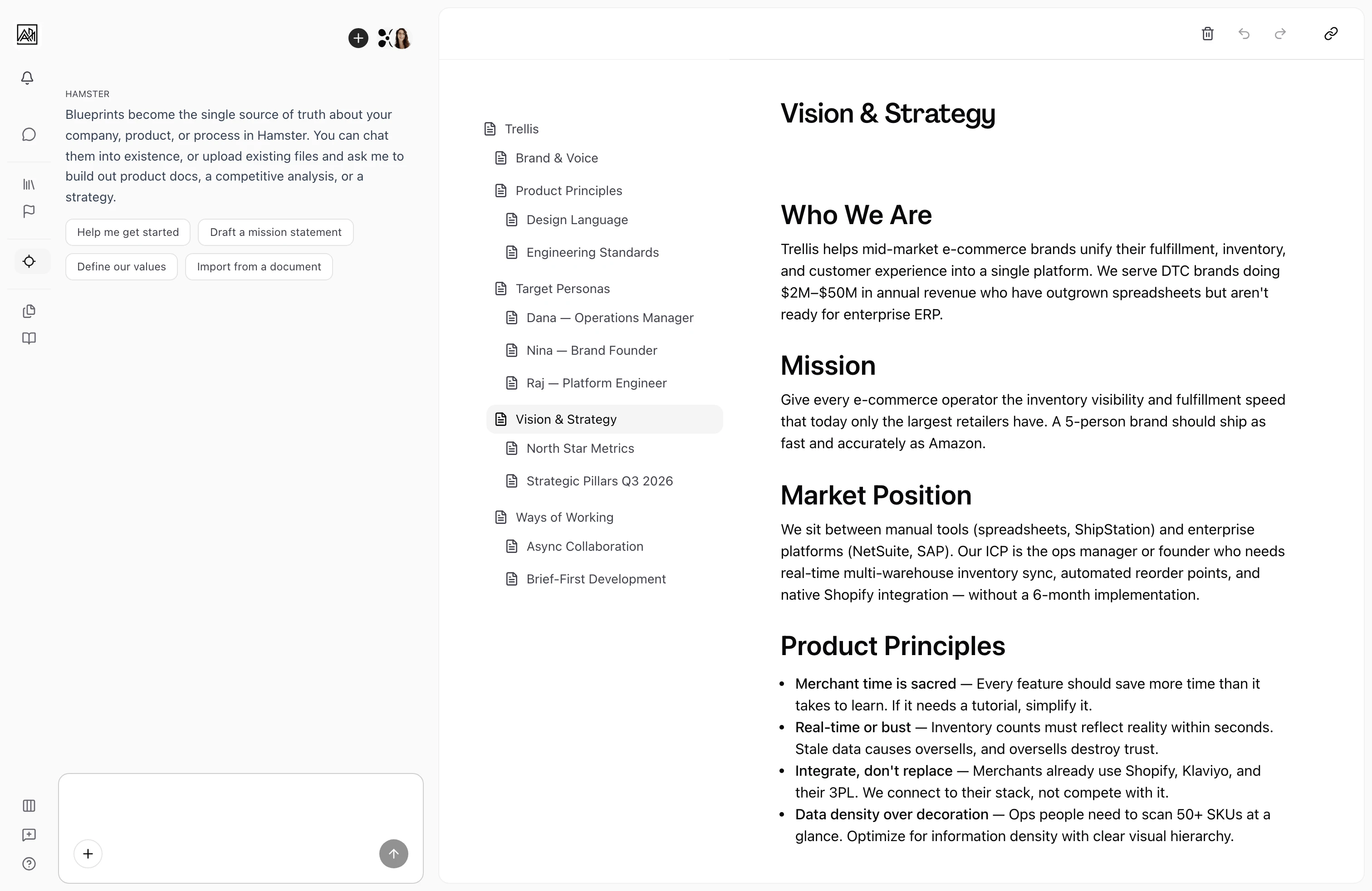
Blueprints can form trees of parent and child documents. The navigation panel on the left side of the editor displays the current document hierarchy and gives you direct access to every Blueprint in it. As your content grows, you can rearrange the structure by moving documents to different parents, or hide the navigation panel from the Display menu for a distraction-free editing experience.
Folders and nested Blueprint documents solve different organization problems. A folder is a container in the Blueprint library. A parent or child Blueprint is still a document, with a relationship to another Blueprint.
Use folders to group the library by a stable topic or area. Use parent and child relationships when the content itself forms a document hierarchy.

How It Works
-
See the full tree — The navigation panel shows the Blueprints in the current parent and child document hierarchy as a collapsible tree. Root documents appear at the top. Child documents are nested beneath their parents and can be expanded or collapsed individually.
-
Navigate between documents — Click any document in the tree to open it. The editor switches to that document immediately without a full page reload. Your scroll position and the state of the tree persist across navigation.
-
Expand and collapse branches — Documents with children show a chevron. Click it to expand or collapse that branch. Collapsed branches still navigate correctly — clicking the document title opens it even when the children are hidden.
-
Move a document — To change where a document sits in the hierarchy, use drag-and-drop in the navigation tree. Drag a document node and drop it onto the new parent. The tree updates immediately and the change saves automatically.
-
Delete a document — Hover over a document in the tree to reveal its context menu (the three-dot icon). Select Delete to remove it. If the document has children, they are removed along with it. You will be redirected to the parent document or to the Blueprints list if the deleted document was a root.
-
Hide the navigation panel — Open Display at the bottom of the app sidebar and turn off Document Navigation to hide the tree sidebar. Turn it back on to show the tree again. On screens narrower than 1280px, the sidebar shrinks to a narrow icon strip automatically. Your preference is remembered across sessions.
Key Capabilities
-
Hierarchical tree navigation: Blueprints in a parent and child document hierarchy are visible in a single panel. The tree supports unlimited nesting depth.
-
Drag-and-drop reordering: Move any document to a different position in the tree, including changing its parent. The order within a level reflects creation order by default.
-
Breadcrumb context: When you open a deeply nested document, breadcrumbs at the top of the editor show the full path from the root. Clicking any breadcrumb item navigates to that ancestor.
-
Real-time tree updates: If a teammate creates, renames, or deletes a Blueprint while you have the section open, the navigation tree updates automatically. You do not need to refresh.
-
Collapsible sidebar: The navigation panel can be hidden from the Display menu in the app sidebar. On screens narrower than 1280px, it collapses automatically to give more space to the document content.
-
Inline create from the tree: Hover over any document in the navigation tree and click the plus icon to create a child document directly beneath it. The new document opens immediately with its title focused for editing.
-
Delete from context menu: The three-dot menu on each tree item includes a Delete option, so you can remove documents without opening them first.
Organize with Hamster
Ask Hamster in chat to move one Blueprint under another or reorganize several Blueprints at once. Separately, ask Hamster to group Blueprints into folders when you want a scannable library structure.
Ask Hamster to archive a Blueprint in chat — the folder tree does not offer archive. Delete Blueprints from chat or the folder-tree context menu.
Structuring Your Blueprint
There is no required structure. The right organization depends on what your team needs to document. A few patterns that work well:
-
Flat top-level documents: One document per major topic (Vision, Strategy, Personas, Voice & Tone). Works well when topics are relatively independent.
-
Topic with sub-sections: A root document per domain, with child documents for each sub-topic. For example, "Product Strategy" as a root, with "Current Quarter", "Roadmap", and "Principles" as children.
-
Reference library: A mix of evergreen documents (Company Mission, Personas) and frequently updated ones (Current Focus, OKRs). Both types live in the same tree.
Tips
- Keep the top level of the tree shallow. Two to four root-level sections is usually enough. Deeper hierarchies are better represented as nested children rather than more roots.
- Name documents with enough specificity to be scannable in the tree. "Q1 Strategy" is easier to find at a glance than "Strategy Notes".
- Turn off Document Navigation in the Display menu when writing long documents. Hiding the tree gives more horizontal space to the editor content.
- The AI references all your Blueprint content regardless of how it is structured. You do not need to put everything in one document — a well-organized tree works just as well.