Thread Messaging
Send and receive messages in a persistent, real-time chat thread with the AI and your teammates.
Overview
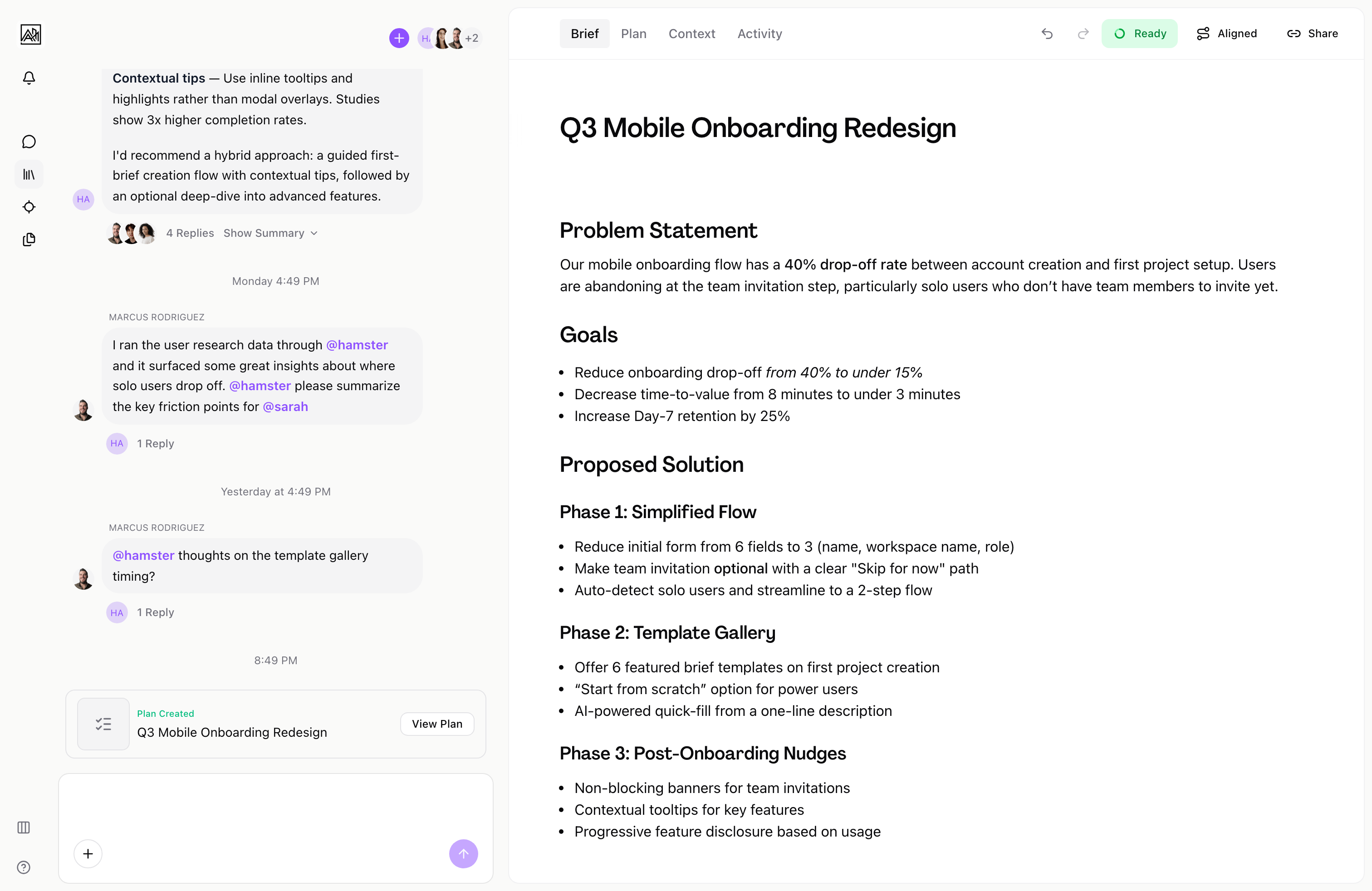
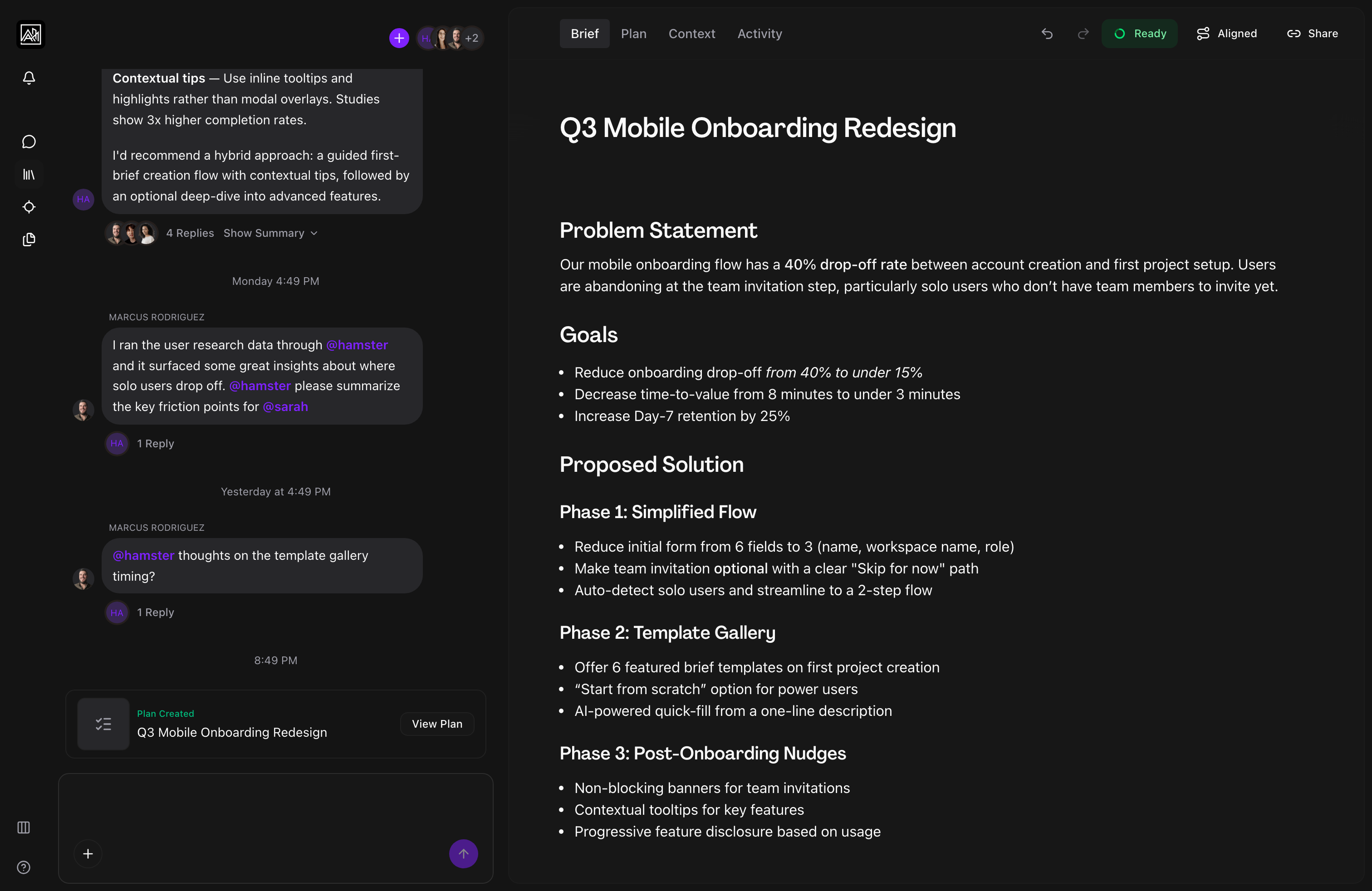
Conversations in Hamster Studio happen inside threads — persistent message streams that are saved automatically and updated in real time. You type in a text input at the bottom of the screen, send your message, and the thread scrolls to show both your message and the AI's reply. Multiple team members can participate in the same thread simultaneously.
How It Works
-
Type your message — Click the input field at the bottom of the conversation. The input supports plain text and rich text formatting. It expands as you type.
-
Attach files or links — Before sending, you can attach images and documents using the attachment button (the plus icon). You can also paste a URL directly into the input — the thread will display a preview card for that link automatically.
-
Send — Press Enter to send, or Shift+Enter to add a new line. Your message appears on the right side of the thread instantly as an optimistic update while it is being saved.
-
Receive a reply — The AI's response streams in below your message, labelled with the AI participant's name. A blinking cursor shows that the response is still being written. Once streaming ends, the cursor disappears and the full response is visible.
-
Reply to a specific message — Hover over any message and click the reply icon that appears. This marks your next message as a reply to that item and shows a context indicator in the thread.
Key Capabilities
-
Rich text display: AI responses render as formatted markdown — headings, bullet lists, code blocks, bold text, and inline code are all supported. Your own messages display as plain text with whitespace preserved.
-
File attachments: You can attach up to the allowed limit of files per message. Images are displayed as a grid of square thumbnails above the message bubble. Documents show as compact preview cards. Clicking an image opens a full-size lightbox.
-
URL previews: When a message contains a URL, the thread automatically fetches the page title, description, and image and shows a preview card below the message bubble. Previews load lazily as the message scrolls into view.
-
Reference links: The AI sometimes references specific briefs, documents, or tasks inline. These appear as tappable reference cards below the message that navigate you directly to the referenced item.
-
Typing indicators: When a teammate (or the AI) is composing a response, a typing indicator appears in the thread so you know a reply is on the way.
-
Queued messages: If multiple messages are sent in quick succession while the AI is processing, the extras are shown in a docked queue above the input. You can cancel a queued message before it is processed.
-
Participant avatars: Each message from a team member shows their avatar in the bottom-left of their message group. Messages from the same person sent consecutively are grouped under a single avatar to reduce visual clutter.
Tips
- Mention a teammate with
@nameto bring them into the conversation. They receive a notification and are added as a thread participant. - Paste a link in your message to get an automatic URL preview. This is useful for sharing context such as design files, documentation, or competitor URLs before asking the AI to work with them.
- If the AI's response references a brief or document, click the reference card beneath the message to jump directly to that item rather than navigating there manually.
Related
- Thread Branches — Forking a message into a focused sub-thread
- AI Responses — How the AI generates and streams replies
- Context Documents — Attaching documents to briefs for AI context