Sharing Briefs
Pull teammates into a Brief thread, share a public link with someone outside the team, or invite a Reviewer to comment without consuming a paid seat.
Overview
Briefs in Hamster Studio belong to a team account. Every member of that account can see every Brief — but who is part of the conversation thread, and who can edit, depends on roles and explicit invitations. Share a Brief by inviting people to its conversation thread, by handing them a public share link, or by giving them a Reviewer seat on the team so they can comment without taking a paid seat.
Cross-account isolation is strict: a teammate's Brief in one account is never visible to people in another, and account membership is checked at every layer — inside the chat agent, inside the editor, and on the database itself.

How It Works
-
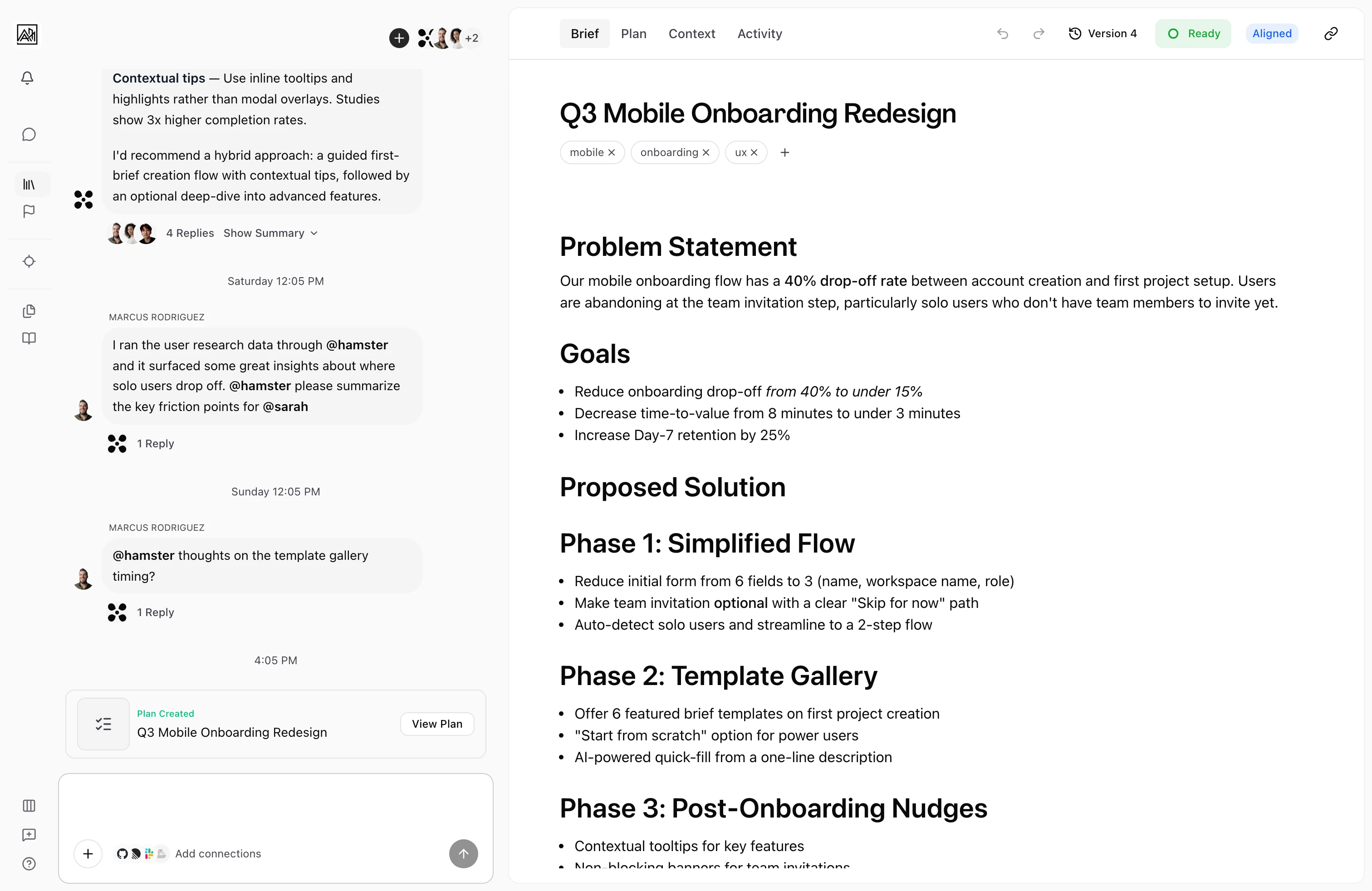
Open the Brief — The participant control sits in the document header, next to the title.
-
Open the invite control — Click the participant avatars or the invite button. A dropdown opens showing current participants and an option to invite more.
-
Invite a teammate — Search by name in the dropdown and select the person. They're added as a participant on the Brief's conversation thread.
-
Or join / leave directly — If you're already a participant, the same control lets you leave the thread. If not, you can join.
-
Share a public link — For someone outside the team, copy the public share URL of the brief. The share page renders the Brief content with an alignment-vote CTA, and lets people sign in to participate without joining your team account.
-
Or invite them to the team — If they need ongoing access, invite them to the team. Choose Reviewer for read-and-comment-only access, or Creator/Admin for write access. See Inviting Members.
Who Can See and Do What
Briefs are scoped to a team account. Within the team, what a member can do depends on their role:
| Role | View Briefs | Comment / vote | Create / edit | Invite members | Manage settings |
|---|---|---|---|---|---|
| Reviewer (free seat) | ✓ | ✓ | |||
| Creator | ✓ | ✓ | ✓ | ✓ | |
| Admin | ✓ | ✓ | ✓ | ✓ | ✓ |
| Owner | ✓ | ✓ | ✓ | ✓ | ✓ |
Reviewers see the Brief workspace as fully read-only — no greyed-out controls and no cursor leaking outbound. They can still cast alignment votes and watch the live document. Reviewer seats don't count toward your paid-seat total, so you can bring in stakeholders, designers, or external reviewers without expanding your subscription.
For more on roles, see Roles and Permissions.
Key Capabilities
- Participant avatars: The document header shows an avatar cluster of current participants.
- Invite by name: Search teammates by display name in the invite dropdown.
- Join and leave: Participants can leave a Brief thread when they no longer need to be involved. Non-participants can join at any time.
- Thread context shared: When you invite someone, they get the full conversation thread for that Brief, including prior messages.
- Real-time participation: Newly invited participants appear immediately. Their alignment votes show in the Activity tab as soon as they cast them.
- Auto-add via mention: Mentioning a teammate with
@namein chat adds them to the thread as a participant before the notification fires, so the deep link in their notification always lands in the right place. - Public share page: Each Brief has a public share URL. The share page shows the Brief body and an alignment vote CTA, with a polished sign-in flow for visitors who aren't on your team yet.
- Cross-account isolation: Briefs from one team account are never visible from another. Permission checks happen on every API call, every database query, and inside the AI agent — a Reviewer's read-only state is enforced on the server, not just hidden in the UI.
- Slack alignment unfurls: When the Slack bot is connected, posting a Brief URL into Slack unfurls a Block Kit card where teammates can cast alignment votes natively. Brief flexpanes in Slack render the markdown description and let editors update the Brief from inside Slack.
Inviting Someone Who Isn't on Your Team
The invite-to-thread dropdown only shows members of your current team account. If you need to collaborate with someone who isn't on the team yet:
- Quick read — share the public share link.
- Comment-only access — invite them to the team as a Reviewer (free seat).
- Edit access — invite them as a Creator or Admin.
See Inviting Members.
Tips
- Invite stakeholders early so they can follow the Brief's development in the chat thread instead of receiving a finished document with no context.
- For Briefs that need formal sign-off, invite the relevant people and ask them to cast an alignment vote in the Activity tab. This creates a record of who agreed and when.
- Use the Reviewer role for product, design, or business stakeholders who need to comment but aren't editing. It's a free seat and gives them a clean read-only experience.
- You don't need to invite someone as a thread participant just for them to see the Brief — every team member can read briefs. Participation is specifically about the conversation thread.