Task Details
Open any Task to read its full description, review subtasks, and see all metadata in one place.
Overview
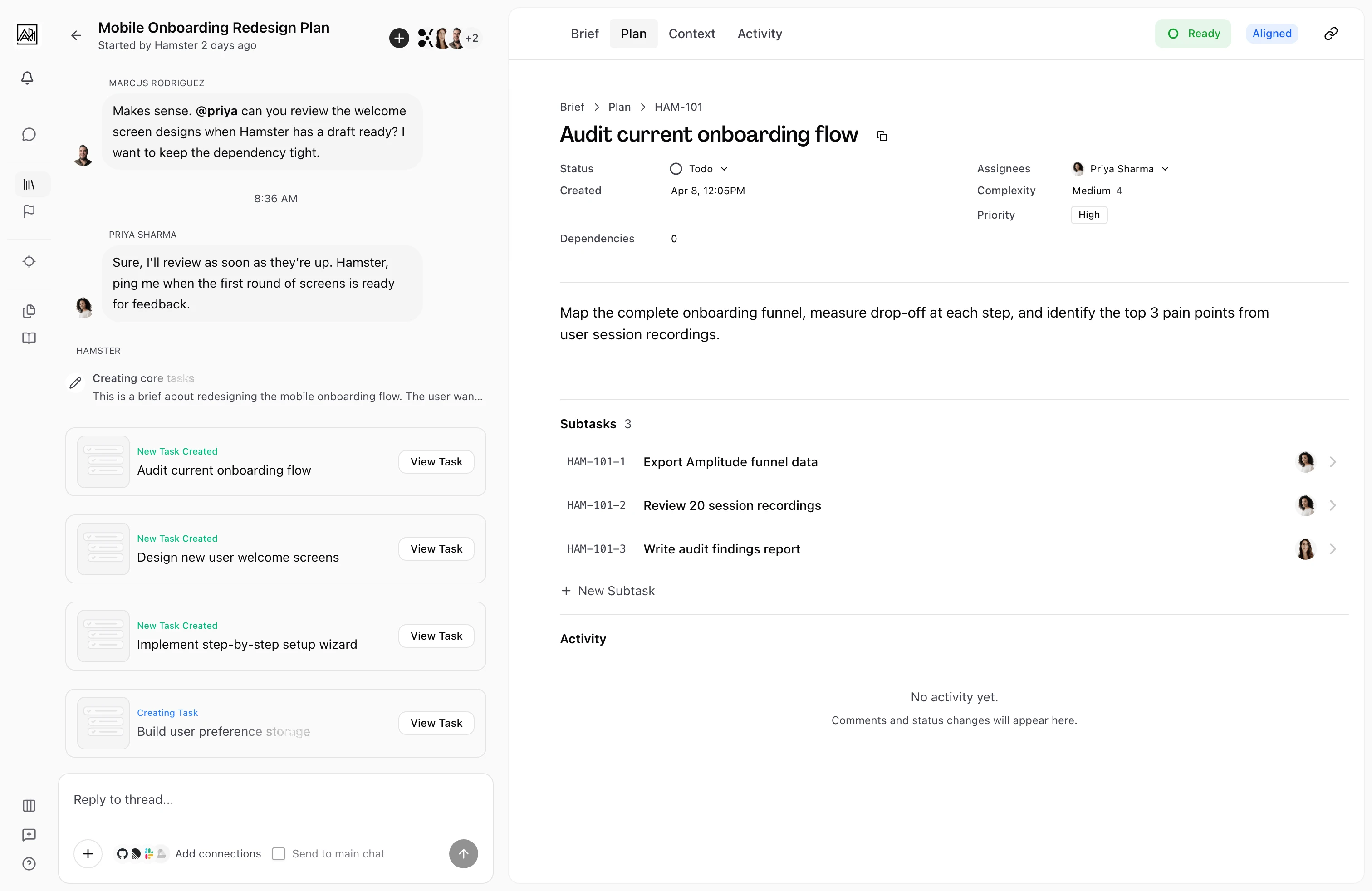
Clicking a Task in the Plan view opens the Task detail page. This is the primary workspace for a single piece of work. It shows the Task's rich description, its subtasks, key metadata (status, priority, assignee, due date), and, where applicable, the live status of any agent working on it. Changes made here — status updates, assignments, new subtasks — are reflected immediately in the Plan list.

How It Works
-
Navigate to a Task — From the Plan tab of any Brief, click a Task row. The Task detail page opens with a breadcrumb trail linking back to the Brief and plan.
-
Read the description — The main body is an editable rich-text document. Content is generated from the Plan and may include headings, bullet lists, code examples, and acceptance criteria. You can edit this content directly.
-
Review metadata — A metadata panel near the top shows Status, Assignee, Priority, and Due Date (if set). Each editable field opens a dropdown when clicked.
-
Work with subtasks — Below the description, a collapsible Subtasks section lists all child tasks. You can expand it to view progress, click any subtask to open its own detail page, manually add new subtasks, or use AI expansion to generate subtasks automatically.
-
Navigate via breadcrumbs — The breadcrumb trail shows: Brief title → Plan → (parent Task if applicable) → current Task ID. Each segment is a link, so you can move back up the hierarchy without using the browser back button.
Key Capabilities
-
Rich text description: Task descriptions support headings, lists, code blocks, and other rich formatting. The content is editable directly — there is no separate edit mode to enter.
-
Live Task data: The Task detail page subscribes to real-time updates. If another team member changes the status or assignee while you are viewing the page, your view updates automatically.
-
Subtask progress: The Subtasks section shows how many subtasks are complete. Each subtask row shows its own status, assignee, and a link to its own detail page. Subtasks can be reordered by dragging.
-
AI subtask expansion: When a Task has no subtasks, an "Expand Subtasks" button appears. Clicking it sends the Task to the AI, which generates subtasks based on the description and Brief context. The expansion runs asynchronously and subtasks stream in as they are created. This button is only available for top-level Tasks, not subtasks.
-
Manual subtask creation: An "Add Subtask" button opens an inline form. Type a title and press Enter to create the subtask immediately.
-
Agent run status: If the Task has been assigned to an AI agent, a status strip in the metadata area shows the current run status and progress percentage. If the agent creates a pull request, a link to it appears here.
Tips
- The description is live-editable. Click anywhere in the content area and begin typing.
- Subtask nesting is recursive. A subtask can have its own subtasks, and clicking into one opens the same layout with its own Subtasks section.
- When a Task is deleted while you are viewing it, the page automatically redirects you back to the plan.