Generating Plans
Turn a completed Brief into a structured Task breakdown with one click.
Overview
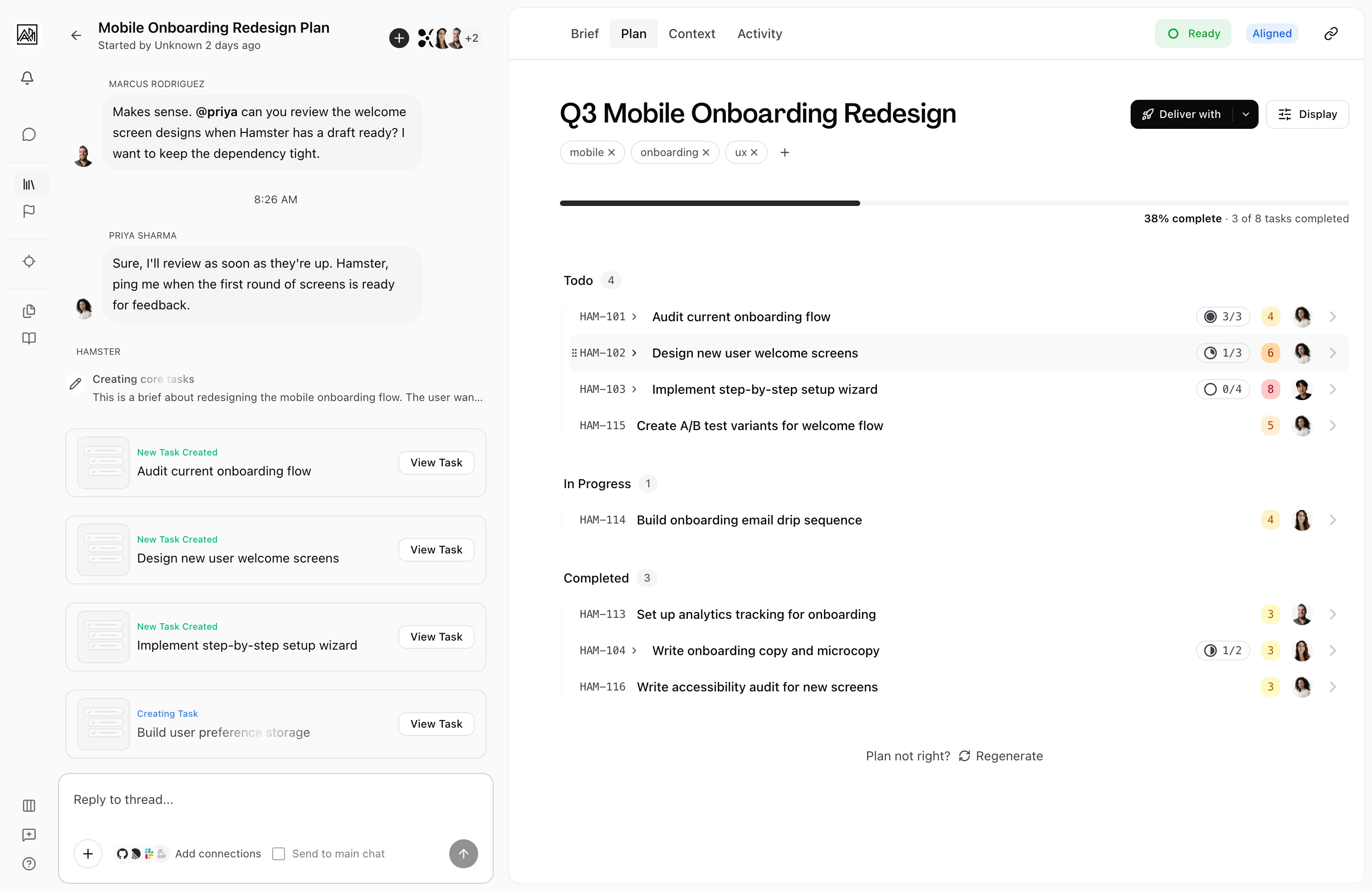
Plan generation reads the content of your Brief and produces a two-level Task hierarchy: a set of parent Tasks covering the major areas of work, each automatically elaborated into subtasks with detailed descriptions and acceptance criteria. The entire process runs in the background, and Tasks appear in the Plan view as they are created.
Generation uses Hamster's Context Graph, so Plans can pull from related Initiatives, documents, prior work, and team context rather than treating your Brief as an isolated input.

How It Works
-
Open your Brief — Navigate to any Brief in your workspace. The Plan tab shows an empty state until a Plan has been generated.
-
Click "Generate Plan" — Hamster Studio analyzes your Brief content and searches for relevant context from your connected Blueprints, Methods, and codebase. A progress indicator shows the current generation phase.
-
Parent Tasks are created — The AI produces a set of top-level Tasks that represent the main areas of work. These appear in the Plan view as soon as they are ready, before elaboration is complete.
-
Subtasks are elaborated in parallel — Each parent Task is expanded into detailed subtasks simultaneously. Each subtask includes a description, scope boundaries, and acceptance criteria. The Plan fills in progressively as elaboration threads complete.
-
Plan is finalized — Once all Tasks have been elaborated, the progress indicator clears and the full Plan is available for review and delivery.
You can watch the whole sequence unfold from the Brief's Plan tab, where the structured Plan streams in phase by phase in real time.
Key Capabilities
-
Watch Tasks appear in real time: Tasks stream into the Plan view as they're generated. You can start reviewing early parent Tasks while the rest of the Plan is still being built.
-
Progress tracking: A progress card at the top of the Plan view shows the current generation phase and how far along the process is. You always know what Hamster is doing and how much is left.
-
Context-aware generation: Before creating Tasks, Hamster searches your Blueprints, Methods, connected tools (including Figma designs if connected), and your codebase. The Plan reflects your team's actual patterns and existing work, not a generic breakdown.
-
Graph-aware planning: Hamster can traverse related entities and context neighborhoods while planning, selecting what is most relevant across Briefs, Initiatives, and documents.
-
No overlap between Tasks: Each parent Task is elaborated with awareness of its siblings. Hamster avoids creating subtasks that duplicate work covered by other parent tasks.
-
Focus areas: When triggering generation from the Brief's chat, you can specify a target number of Tasks or particular focus areas to shape the output.
-
Refine with chat: After a Plan is generated, the Brief's chat stays docked beside the Plan tab. Ask Hamster there to split a parent Task, add a missing subtask, rewrite acceptance criteria, or change the scope — without regenerating from scratch. Hamster reads the current Plan and applies changes directly.
-
Drag-and-drop reordering: Drag Tasks to reorder them. The new order is saved and respected during delivery.
-
Regeneration: If the Plan doesn't reflect what you need, regenerate it from the Plan tab. This clears all existing Tasks and produces a fresh Plan from the current Brief content. This action cannot be undone.
Generation Phases
The progress header shows the current phase as Plan generation runs:
| Phase | What is happening |
|---|---|
| Analyzing Brief | The AI is reading and parsing the Brief content |
| Generating Tasks | Parent Tasks are being created one by one |
| Processing Tasks | The completed parent Tasks are collected for elaboration |
| Generating subtasks | Each parent Task is being elaborated in parallel |
You can also trigger generation right from chat — @mention Hamster in a message and a Plan Generating card pops in without leaving the conversation.
Tips
-
Write a thorough Brief before generating a plan. The richer the context in your Brief — requirements, constraints, background research — the more accurate and detailed the generated Tasks will be. Use the Guided Research flow first if you need to gather information before generating.
-
If you are not happy with the initial Plan, use the Regenerate button after editing your Brief to add more detail or clarification rather than manually reworking every task.
-
Complex Plans can take a few minutes. You can leave the page; Hamster persists the work and notifies you when the Plan is ready.