Starting a Conversation
Begin a new chat with the AI assistant from the home page — your default workspace in Hamster Studio.
Overview
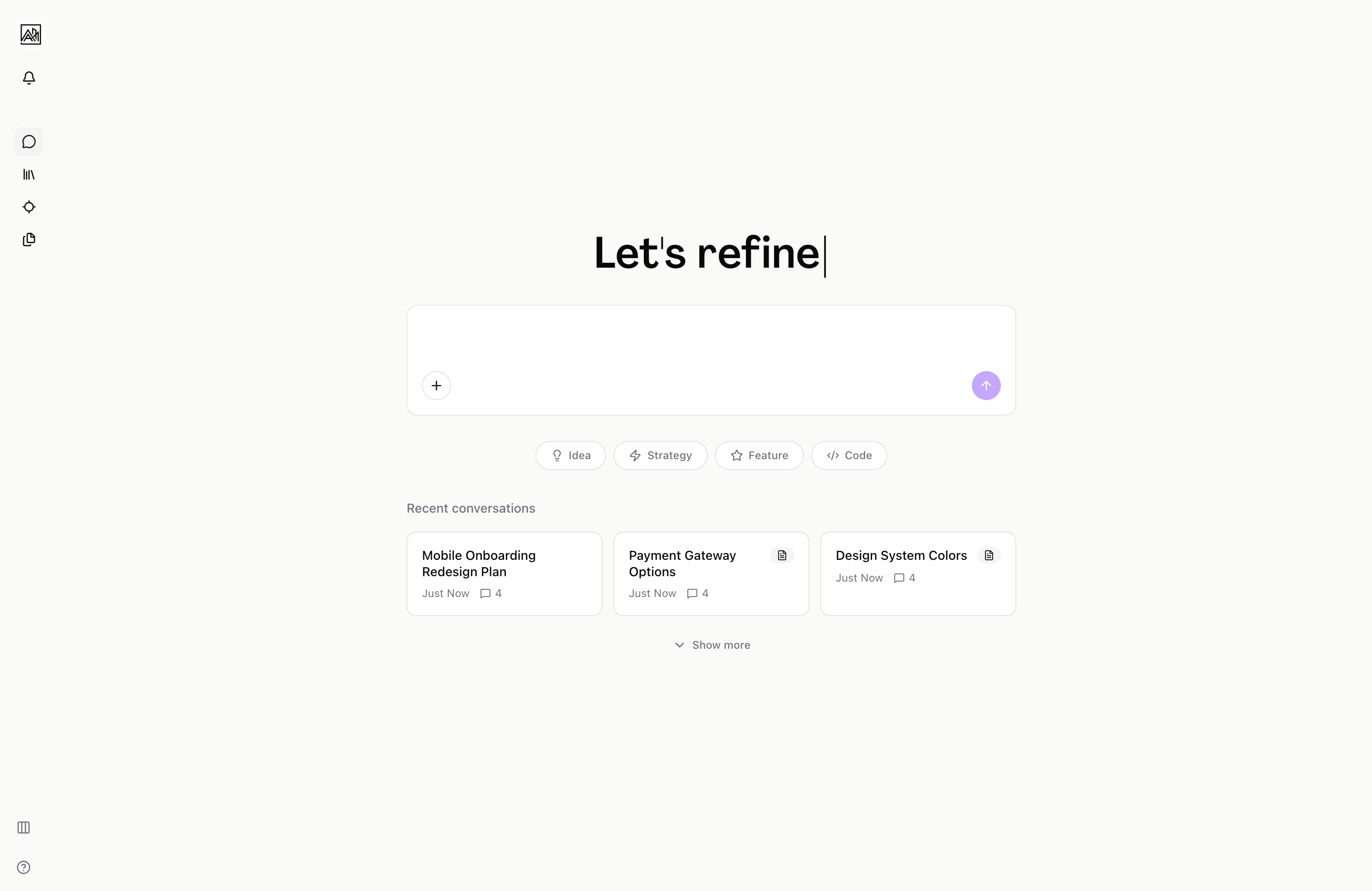
When you open Hamster Studio, the home page is a conversation canvas, not a dashboard. There is no project list to navigate or menu to drill through. The input field is front and center, inviting you to describe what you want to work on. Once you send your first message, the welcome screen steps aside and the conversation begins.
How It Works
-
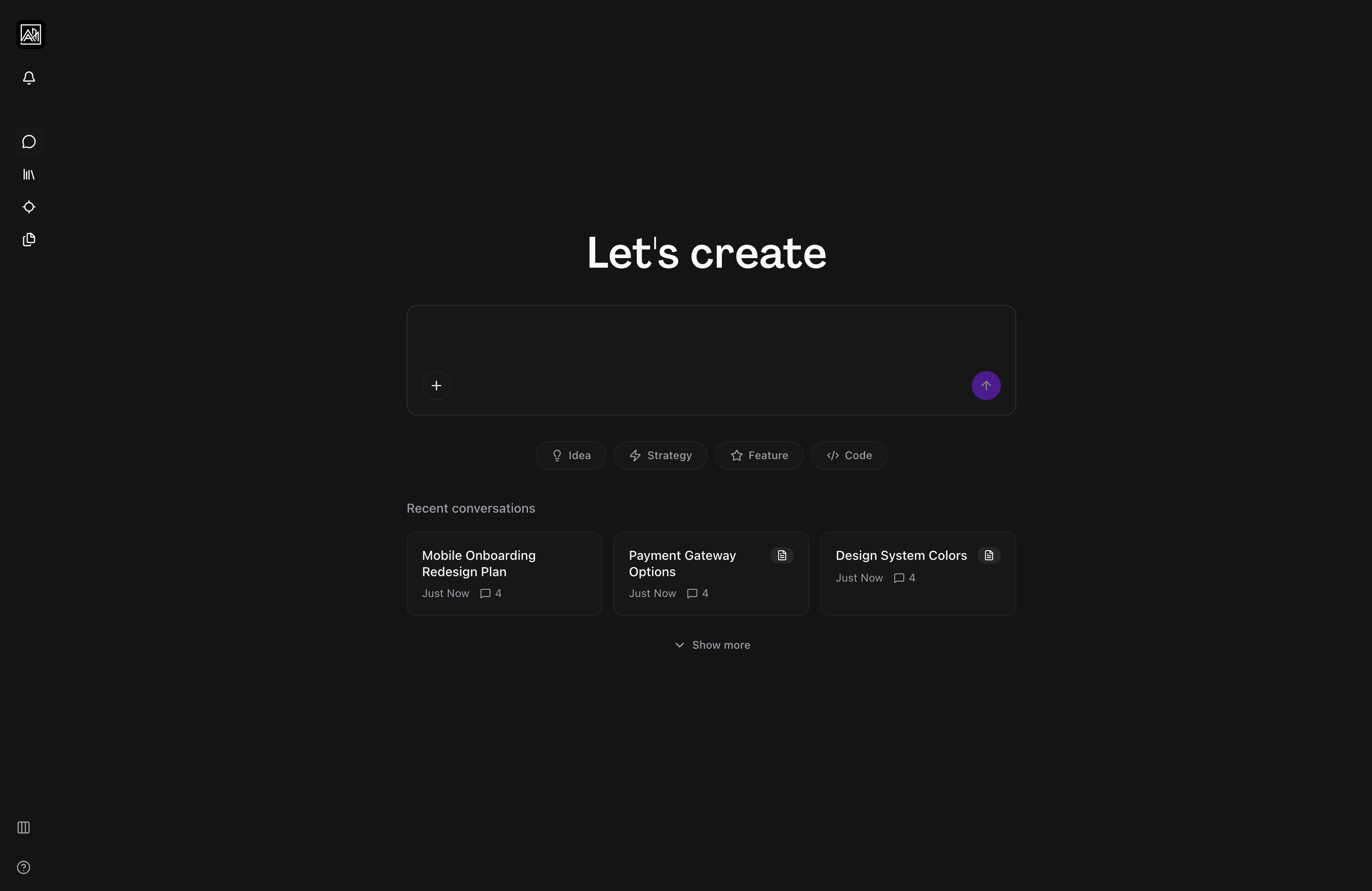
Open the home page — Navigate to your workspace. The page shows a large heading and a centered message input. Your three most recent conversations appear below the input as cards.
-
Choose a starting point — Either type your own message, or use one of the one-tap category buttons below the input. Categories include Idea, Strategy, Feature, and Code — clicking one expands a panel of pre-written prompt starters you can select and edit.
-
Send your first message — Press Enter or click the send button. The welcome header fades out, the input pins to the bottom of the screen, and the conversation starts. The AI begins responding immediately.
-
Continue the conversation — From here, the chat behaves like any threaded messaging interface. You can reply, ask follow-up questions, or ask the AI to create a brief from what you have discussed.
Key Capabilities
-
One-tap prompts: Four categories — Idea, Strategy, Feature, Code — each with curated prompt starters. Clicking a starter inserts the text into the input so you can refine it before sending.
-
Animated welcome header: The heading cycles through action words ("Let's ship", "Let's create", "Let's brainstorm") when the page first loads. It settles and steps aside after you start typing.
-
Back to start: A back arrow appears in the top-left once a conversation is active. Clicking it closes the current thread and returns you to a fresh home page with the input centred on screen.
-
Thread auto-creation: A new thread is prepared before you type your first character. You never wait for a thread to be created after pressing send — the message goes straight through.
-
Suggestion buttons: In some workspaces, the empty chat state shows quick suggestion buttons beneath the AI's opening message. Clicking one inserts a pre-written prompt starter into the input. This feature may need to be enabled for your workspace.
-
Recent conversations: The home page shows your three most recent conversations below the input. If you have more, a "Show more" button loads up to 20 in a scrollable grid. Clicking any card reopens that conversation in place.
Tips
- You do not need to navigate anywhere to start fresh. Just click the back arrow from any active conversation to return to the home screen and begin a new chat.
- If you select a one-tap prompt and then clear the input, the one-tap panel collapses automatically, so you can switch prompts or type freely without distraction.
- Conversations linked to a brief show a document icon on their history card. Clicking that card takes you directly to the brief page rather than reopening the chat.
Related
- Conversation History — Finding and reopening past conversations
- AI Responses — What happens after you send a message
- Creating Briefs — Turning a conversation into a structured brief