Creating Your Account
Sign up for Hamster Studio and get access to your workspace.
Overview
Creating an account gives you access to your Hamster Studio workspace, where you can start conversations, create briefs, and collaborate with your team. Depending on how your organization manages access, you will either sign up directly, join via an invitation link, or request access through the early-access waitlist.
How It Works
Option 1 — Waitlist (Early Access)
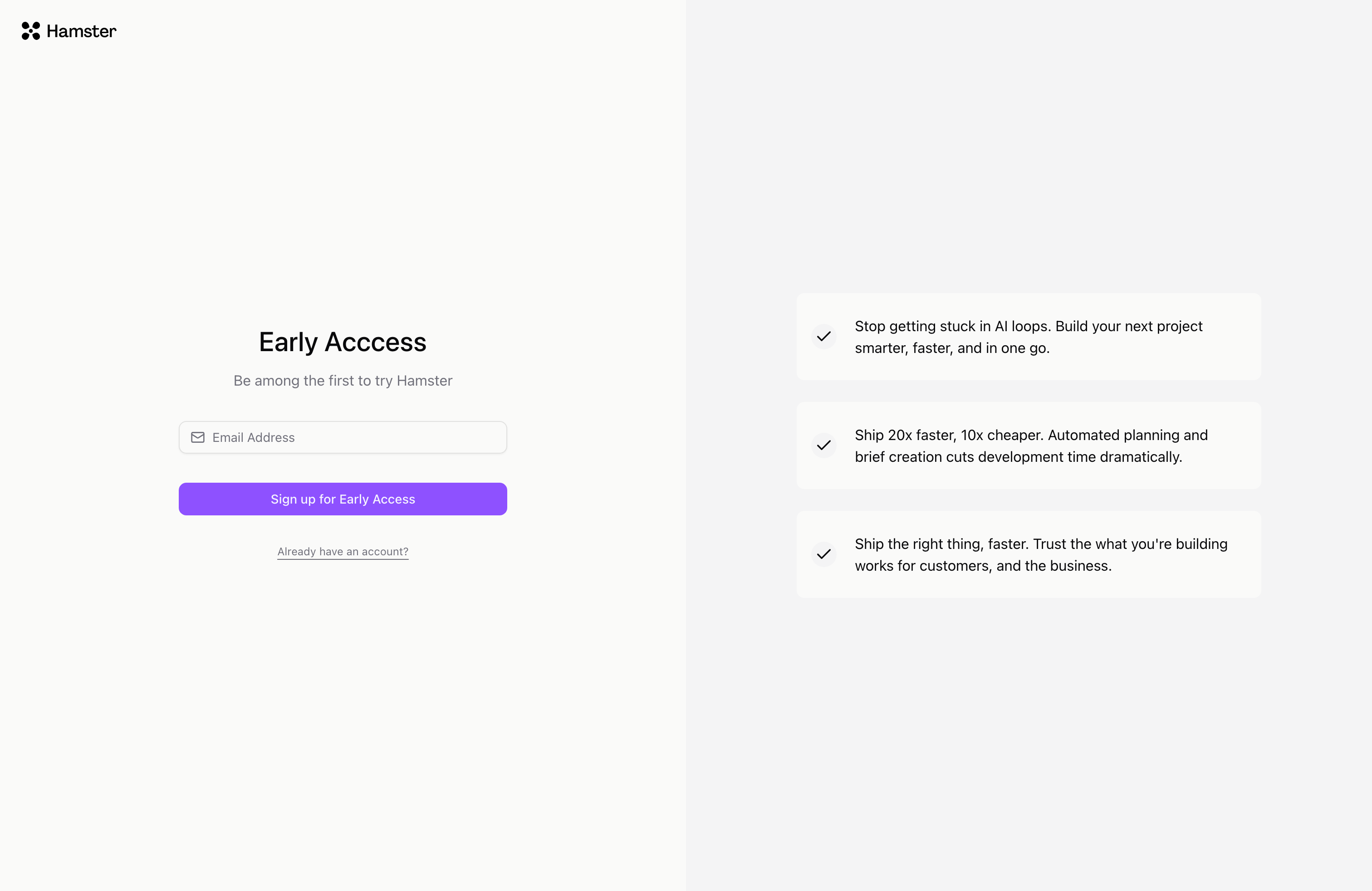
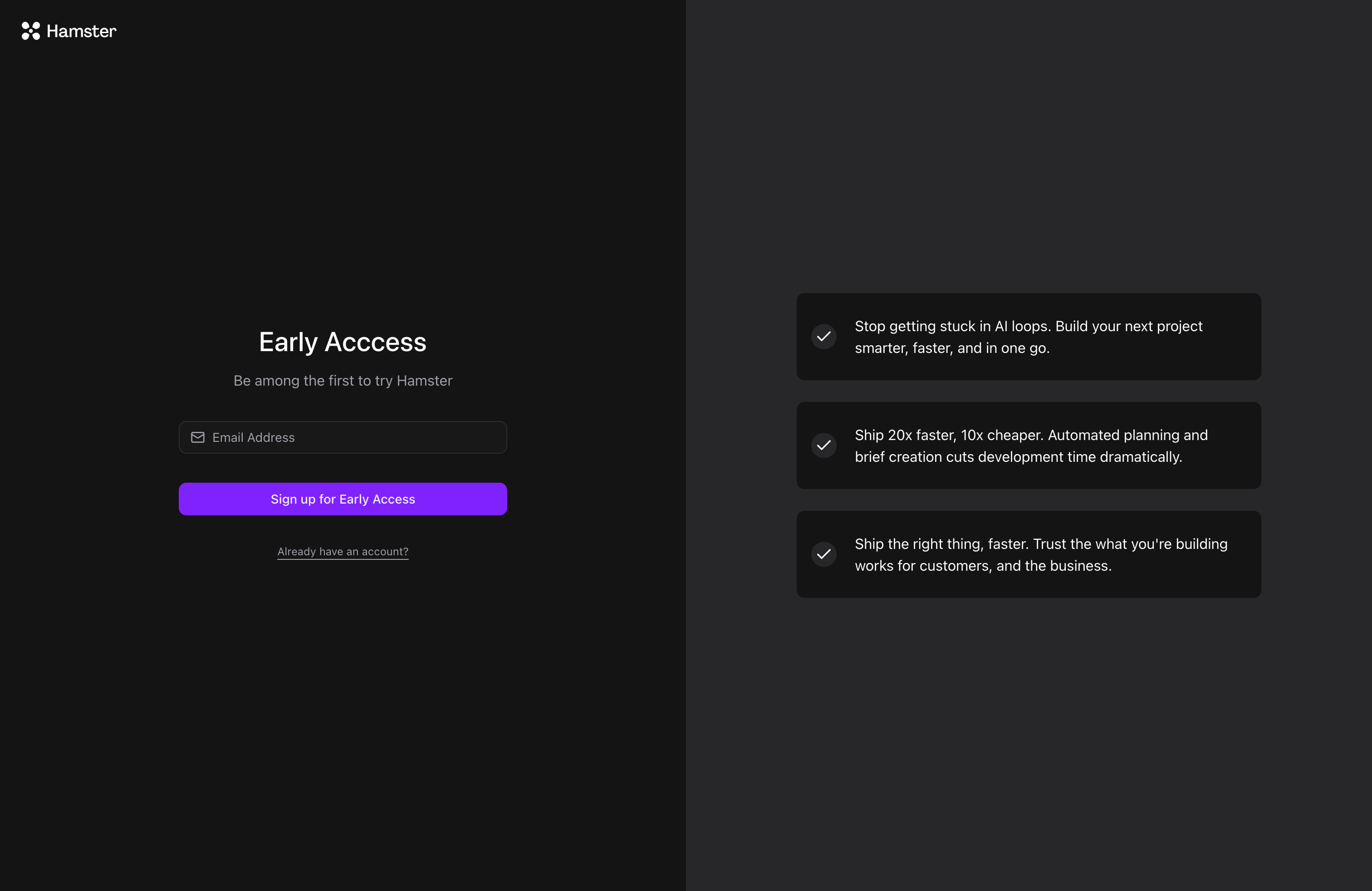
Hamster Studio uses an early-access waitlist by default. When you visit the sign-up page, you will see a waitlist form rather than a standard registration form.
- Enter your email address — Submit the form to join the waitlist.
- Wait for approval — You will receive an email when your access is approved.
- Click the link in the approval email — This takes you directly to the sign-up form to create your account.
- Create your account — Enter your name and choose a password.
- Complete onboarding — You are taken into the setup wizard immediately after signing up.
Option 2 — Team Invitation
If a teammate has already invited you, you do not need to join the waitlist. The invitation email contains a link that takes you straight to a sign-up form.
- Open the invitation email and click the link.
- Create your account — Enter your name and choose a password on the sign-up form.
- Complete onboarding — After creating your account you are automatically added to that team's workspace and taken through the setup wizard.
Option 3 — Direct Sign-Up
If your organization has disabled the waitlist, the sign-up page shows the standard registration form.
- Go to the sign-up page.
- Enter your details — Provide your email address and choose a password. If your workspace supports social sign-in, you can also sign up using Google, GitHub, or another configured provider.
- Verify your email — Check your inbox for a verification email and click the confirmation link. You will not be able to access your workspace until your email is verified.
- Complete onboarding — After verification you are taken directly into the setup wizard.
Key Capabilities
- Waitlist sign-up: Request early access with your email address when Studio is in a limited rollout.
- Email and password sign-up: Create an account with any email address and a password you choose.
- Social sign-in: Sign up with a supported provider such as Google or GitHub, when configured for your workspace.
- Team invitations: Accepted invites bypass the waitlist and join the team's workspace immediately.
- Password recovery: Use the Forgot password link on the sign-in page to receive a reset email.
Signing In After Account Creation
Once your account exists, go to the sign-in page and enter your credentials. If you have multi-factor authentication enabled, you will be asked for a verification code after entering your password.
To recover access if you are locked out, use the Forgot password link on the sign-in page. You will receive an email with a link to set a new password.
Tips
- Use a work email address. Teammates who send you invitations will send them to the email on your account, so a work address makes you easier to find.
- If you do not receive the verification or waitlist approval email within a few minutes, check your spam folder.
- Team invitation links bypass the waitlist automatically — share them with colleagues who need immediate access.
- Social sign-in options (Google, GitHub, Azure) are only available when the waitlist is disabled. During early access, email-based sign-up is used to ensure controlled onboarding.