Task Assignment
Assign any Task to a team member or an AI agent directly from the Task list or Task detail page.
Overview
Task assignment connects a piece of work to the person or agent responsible for delivering it. Assignments are visible throughout the Task list and inside the Task detail page, making it clear at a glance who owns what. Any team member with access to the Brief can assign or reassign a Task at any time. If your workspace has an AI coding agent configured and connected to a code repository, you can also assign Tasks to that agent to have it work on the implementation automatically.

How It Works
-
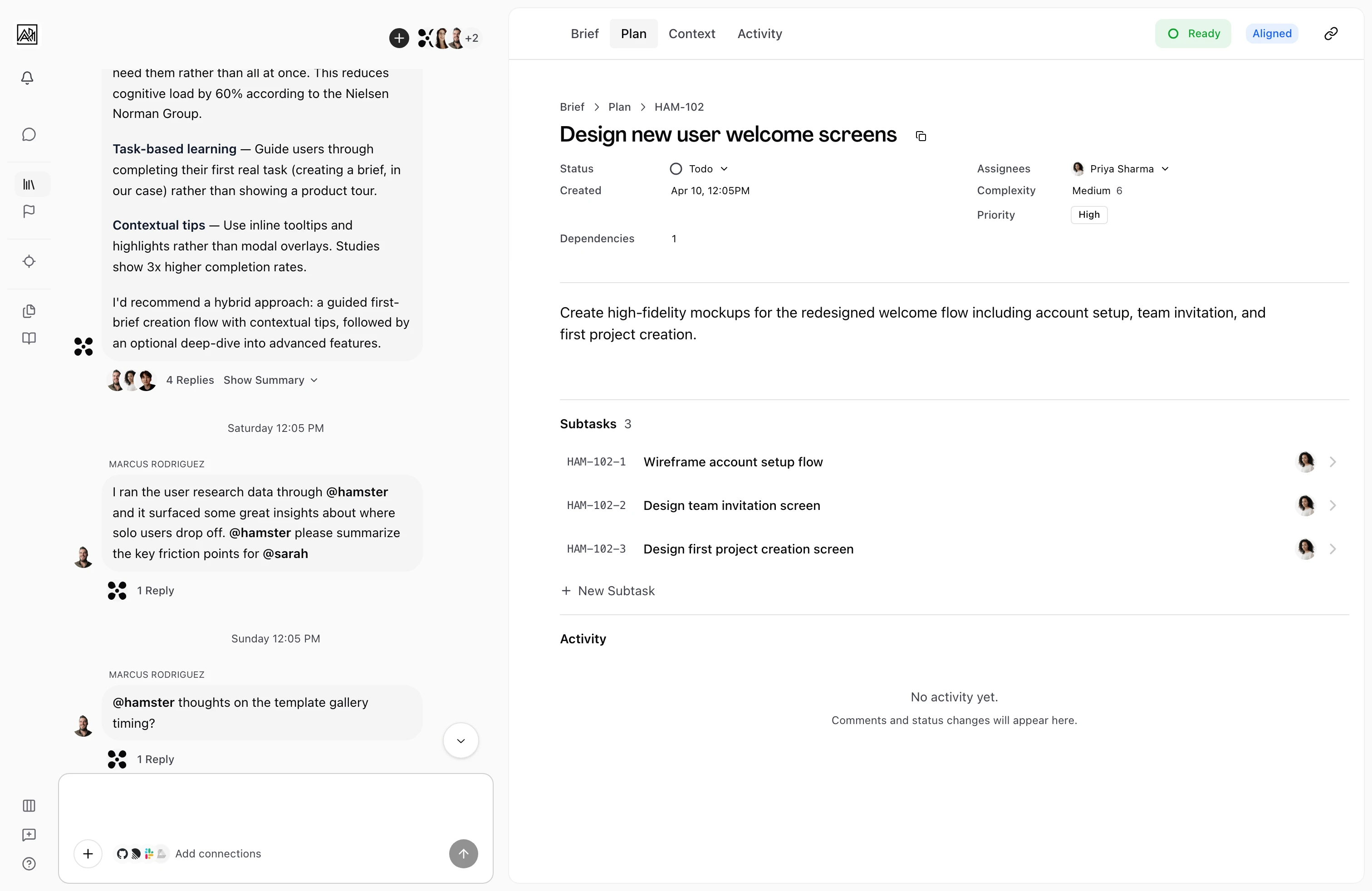
Find the Task — Navigate to the Plan tab of the brief. Each Task row shows an assignee avatar on the right side. A grey placeholder means the Task is unassigned.
-
Open the assignee picker — Click the avatar or the chevron beside it. A dropdown appears showing "Agents" (if configured), "Team Members", and "Tools" (if your workspace has connected apps). The current assignee is marked with a "Current" badge.
-
Select an assignee — Click any name. The assignment saves immediately and the avatar on the Task row updates. Select "Unassigned" at the top to remove the assignment.
-
Assign from the Task detail page — Open the Task and click the Assignee field in the metadata grid. The same picker appears and saves the same way.
Assigning to a Team Member
Team members appear under "Team Members" in the picker. Selecting one saves the assignment immediately — the member's name and avatar appear on the Task row, giving the rest of the team visibility into ownership. You can assign to yourself or to any other team member. There is no approval step. Assigning a teammate also makes the Task a Person Task, which a Hamster Cloud Delivery hands to that person instead of the coding agent. See Person and Tool Tasks.
Assigning to an AI Agent
If your workspace has a coding agent configured, an "Agents" section appears at the top of the picker. Agents are only available for top-level Tasks — the section does not appear when working with a subtask.
When you assign a Task to an agent:
- The Task status moves to "In Progress".
- The agent starts working on the Task in the connected code repository right away.
- The Task detail page shows a status strip with the run status and a progress percentage.
- When the agent finishes, a link to the pull request appears in the status strip.
Person and Tool Tasks
Every Task has a type that decides who does the work when a Hamster Cloud Delivery runs the Plan. Plan generation sets it, and you can change it from the assignee picker:
- Agent — The coding agent does the work. This is the default, so agent Tasks carry no badge.
- Person — A teammate does the work. Assigning a team member sets this type; picking an agent or "Unassigned" sets the Task back to Agent.
- Tool — A connected app does the work. Pick an app from the "Tools" section of the assignee picker, which lists your workspace's connected apps. On a Tool Task, the body is labeled Prompt: it is the instruction handed to the tool.
Task rows show a small badge for Person and Tool Tasks, and the Task detail page shows Person or the connected app's name.
When a Hamster Cloud Delivery reaches an open Person or Tool Task, it pauses there. At a Person Task, Hamster pushes the work so far, adds a Ready for review section with the branch and any pull request, moves the Task to In Progress, and sends the assignee a "Delivery waiting on you" notification. If the Task is unassigned, the notification goes to whoever started the Delivery. At a Tool Task, Hamster runs the connected app with the Task's Prompt and marks it done when the action succeeds.
While the Delivery waits on a Person Task, its detail page shows "Delivery is waiting on this task — mark it done to resume." Set the Task to Done, and the Delivery resumes on the same branch with the next Task. A Plan made only of agent Tasks delivers in one run, without stopping.
Unassigning a Task
Open the assignee picker and select "Unassigned" at the top. Unassigning a Task that was previously assigned to an agent does not cancel any in-progress agent run — agent runs continue independently once started.
Key Capabilities
- Assign from list or detail view: Both surfaces use the same picker and save immediately.
- Visual ownership in the Task list: Task rows show the assignee's avatar. Unassigned Tasks show a placeholder for easy scanning.
- Agent assignment: Assigning to an AI agent triggers automated work on the Task in the connected code repository.
- Agent run visibility: The Task detail page shows a live status strip for any agent working on the Task, with a link to the pull request.
- Subtask assignment: Subtasks can be assigned to team members using the same picker, minus the Agents section.
- Person and Tool Tasks: Assign a teammate or a connected app, and a Hamster Cloud Delivery pauses at that Task until it's done.
Tips
- Assign Tasks as soon as the Plan is generated. Even a tentative assignment helps the team understand who is expected to pick up each item.
- If a Task is blocked or handed off, reassign it at any point — no history or notes are lost.
- Agents require a code repository Connection before assignment triggers automated work. See Connections Overview for setup instructions.