Personal Profile
Update the name, avatar, and email address that represent you across Hamster Studio.
Overview
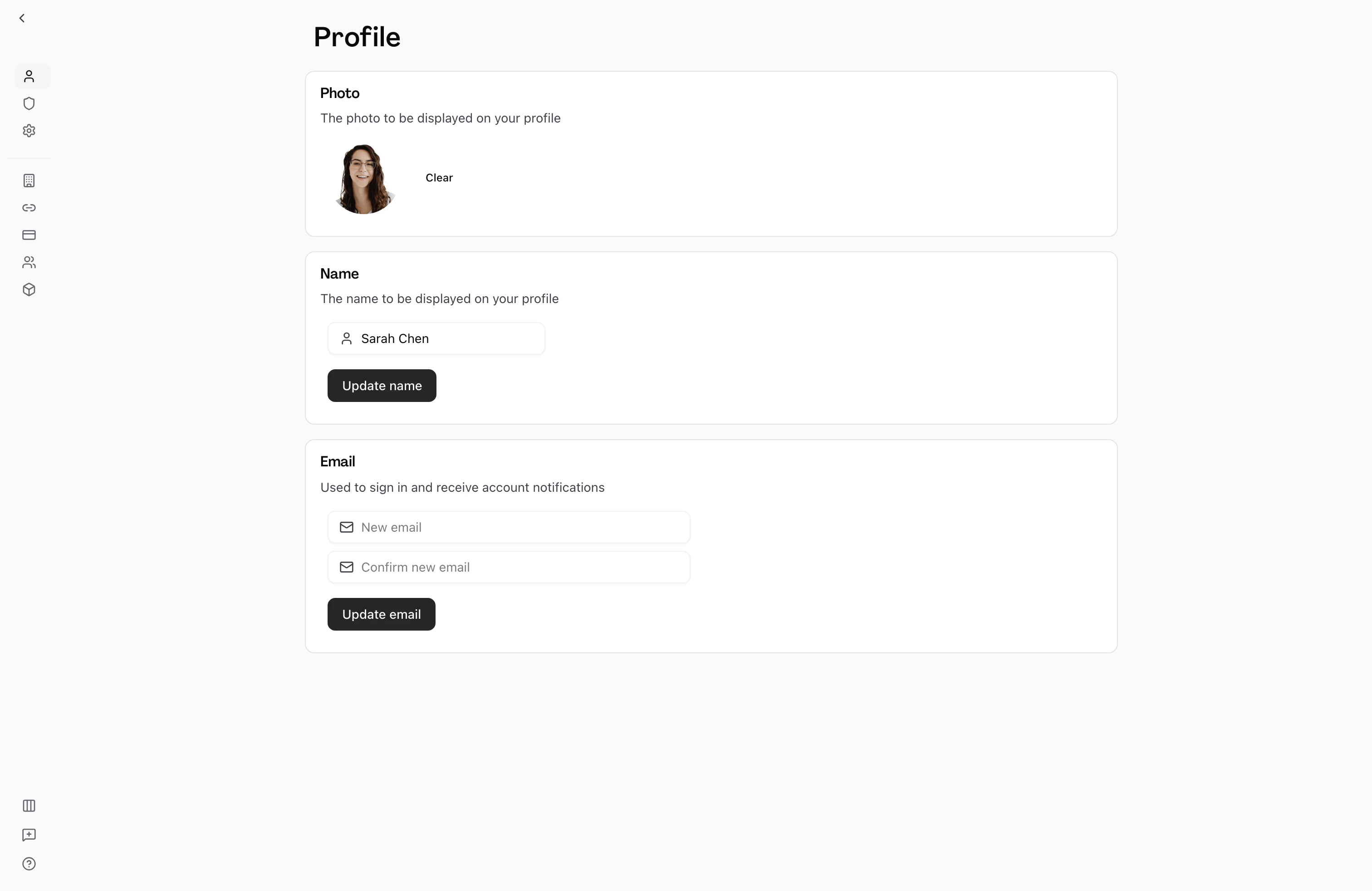
Your personal profile is separate from any team or workspace you belong to. Changes you make here — your display name, profile picture, and email address — apply to your account everywhere: in comments, assignee fields, member lists, and notifications. You can update these at any time without affecting your team settings.

How It Works
-
Open personal settings — Select your avatar or name in the sidebar to open the settings menu, then navigate to Personal Profile. The URL pattern is
/home/[your-team]/personal-settings/profile. -
Update your avatar — In the Account Image section, upload a new profile picture. Supported formats include standard image types. The image appears as a circular avatar wherever your name is shown.
-
Change your display name — In the Name section, type a new display name (2–100 characters) and save. This is the name other team members see when you're mentioned or assigned to tasks.
-
Update your email address — In the Email section, enter a new email address. Hamster sends a confirmation link to the new address. Your email change takes effect after you click that link.
Key Capabilities
- Avatar upload: Upload a profile image directly from your device. It replaces your previous avatar immediately after saving.
- Display name: A free-text name shown throughout the product — in Brief assignee fields, member lists, comments, and activity feeds.
- Email address: Your sign-in email. Changing it requires email confirmation for security. If you signed in with a social provider (Google, GitHub, or Microsoft), your email is managed by that provider.
Tips
- Use a recognizable name — ideally your first name or the name your teammates know you by. This makes it easier for others to find you in assignee pickers and mentions.
- If you need to change the email address associated with a social sign-in (Google, GitHub, or Microsoft), update it with that provider first. See Security for how linked accounts work.
- Your avatar is displayed at small sizes throughout the product. A high-contrast headshot or simple icon works better than a wide landscape image.