Conversation History
Browse, search, and reopen your past conversations directly from the home page.
Overview
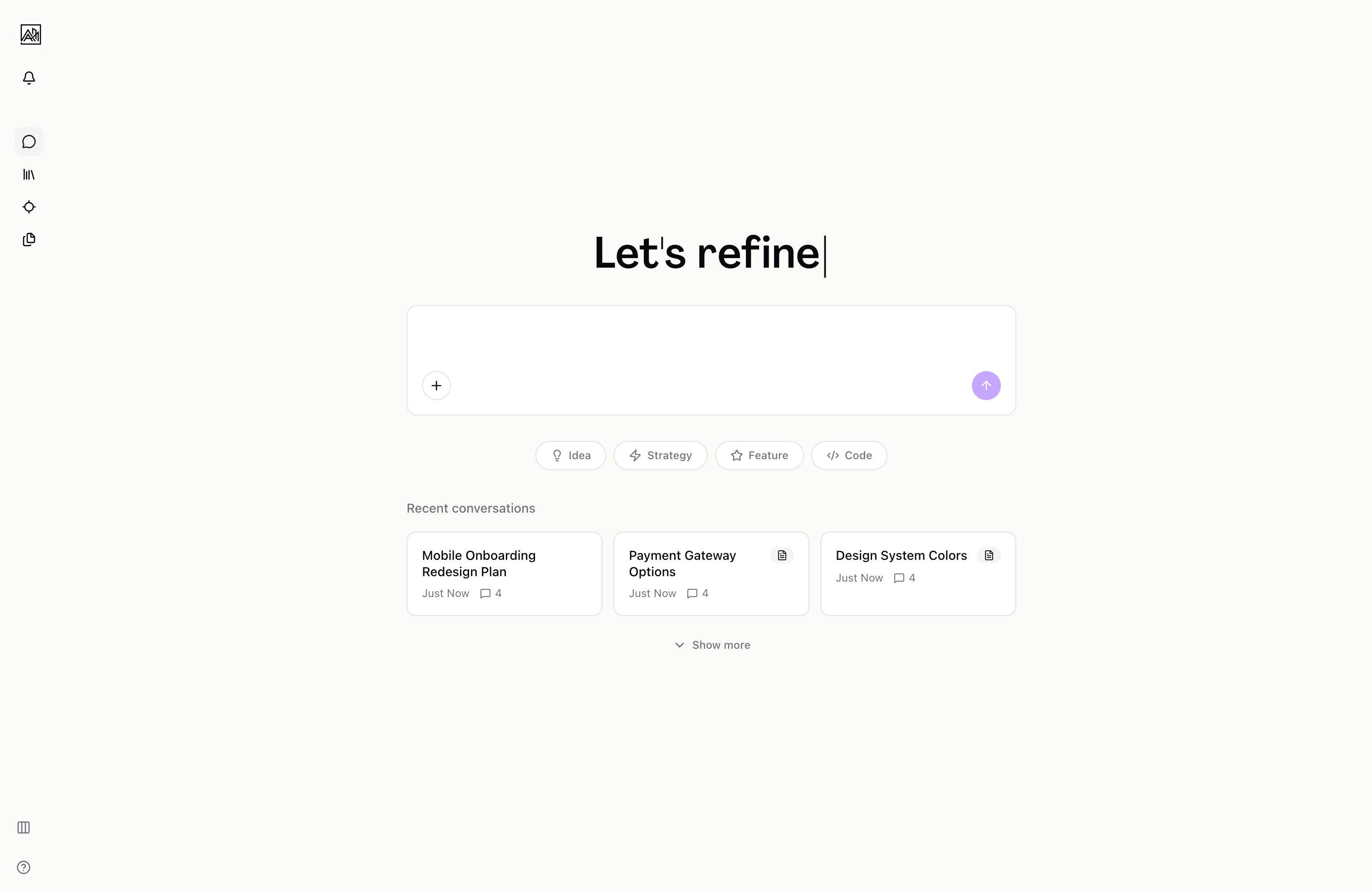
Every conversation you have in Hamster Studio is saved automatically and associated with your workspace. When you return to the home page, your three most recent conversations appear as clickable cards below the input. You can load more to see up to 20 conversations, or jump straight back into any past chat with a single click. Conversations linked to a brief take you to the brief rather than the standalone chat view.
How It Works
-
Return to the home page — Navigate to your workspace home. If you have had previous conversations, they appear below the chat input in a grid of cards. Each card shows the conversation title, how long ago it was last active, and how many messages it contains.
-
Browse your history — The initial view shows three conversations. If you have more, click "Show more" at the bottom of the grid to load up to 20 conversations in total. The grid expands in place. Click "Show less" to collapse it back to three.
-
Reopen a conversation — Click any card to load that conversation into the current view. The input pins to the bottom and the message history scrolls into place. You can continue the conversation from where it was left off.
-
Navigate to a linked brief — Conversations that produced a brief show a document icon on their card. Clicking that card takes you directly to the brief page rather than reopening the chat. All brief context, tasks, and activity history are accessible from there.
-
Start fresh at any time — If you want a new conversation rather than reopening an old one, simply type in the input or use the back arrow from any active thread. A new thread is always ready without needing to navigate anywhere.
Key Capabilities
-
Automatic titling: Conversations are titled automatically based on their content. If no meaningful title can be determined, the card shows "Untitled conversation". Titles are not editable directly from the history view.
-
Activity timestamps: Each card shows a relative timestamp — "Just now", "3 hours ago", "2 days ago" — based on the time of the last message in that conversation. This makes it easy to identify conversations that went idle.
-
Message count: Each card shows the number of messages in the conversation so you can quickly identify whether it was a short exchange or an extended session.
-
Realtime updates: The conversation history grid updates in real time. If a new conversation becomes active (for example, if a teammate starts one in the same workspace), a new card can appear in the grid with a brief highlight animation.
-
Brief linkage: Conversations that were used to create or modify a brief are marked with a document icon. Clicking them routes you to the brief rather than the chat, because the brief is the persistent artefact. You can still access the conversation history from within the brief's activity timeline.
-
Pagination without navigation: All history browsing happens on the home page without any route changes. The grid expands and collapses in place, and reopening a conversation replaces the content area without navigating away.
Tips
- If you cannot find a recent conversation in the initial three cards, click "Show more" to load the full list before starting a new one. You may have already made progress on that topic.
- Conversations linked to briefs are accessible from both the home page history and the brief's activity timeline. The brief page is the better place to continue working on the content itself; the home page is better for a fresh conversational back-and-forth.
- New conversations added by teammates in real time appear with a subtle ring highlight on their card for a short time, making it easy to spot activity that happened while you were on the page.
Related
- Starting a Conversation — How the home page and input work
- Thread Messaging — What happens inside a conversation
- Creating Briefs — Turning a conversation into a structured brief
- Activity Timeline — Conversation history within a brief