Navigating Studio
Find your way around Hamster Studio's sidebar, workspace switcher, and main sections of the interface.
Overview
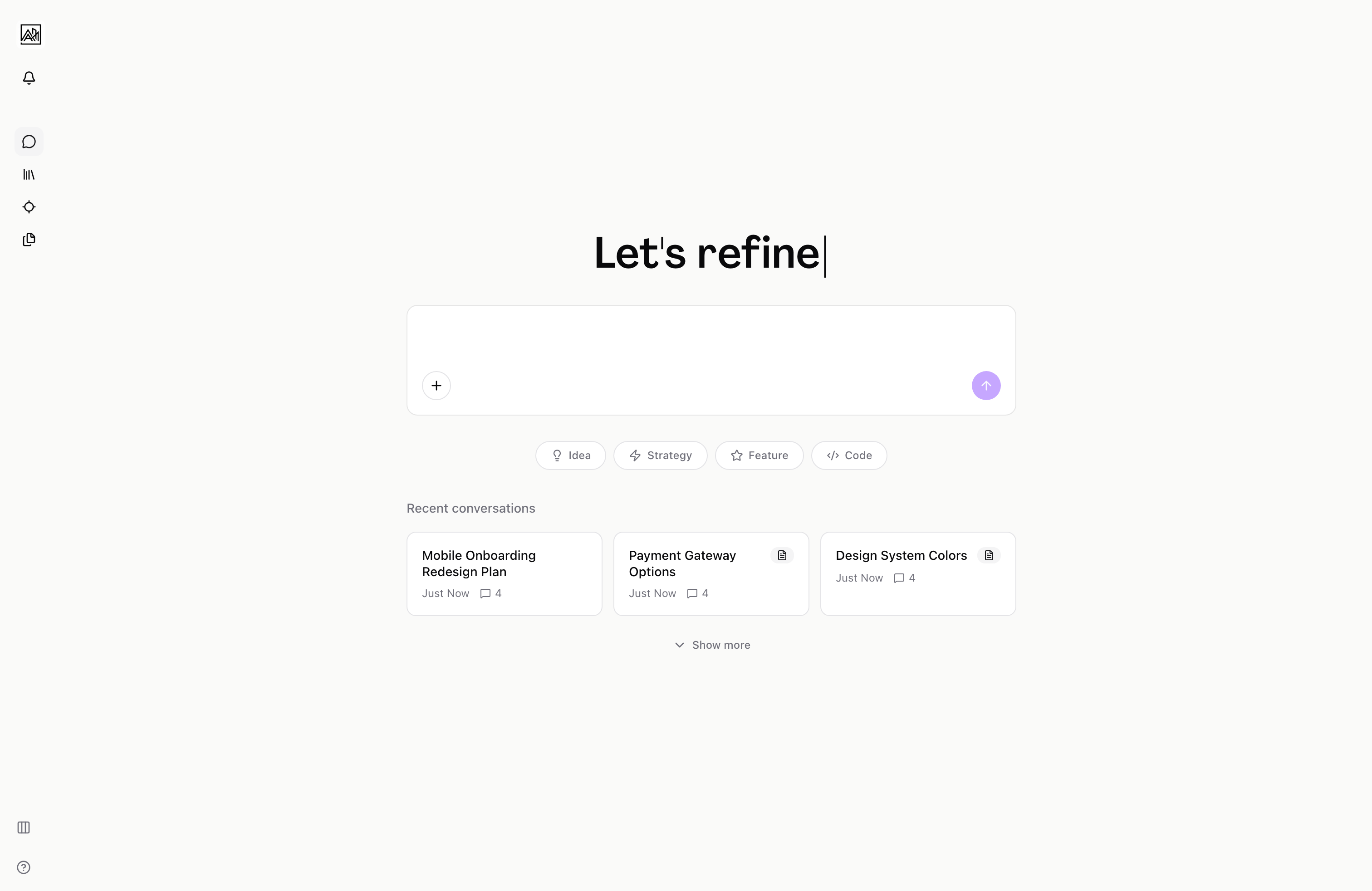
Hamster Studio organizes everything around a workspace. Each workspace has a sidebar that gives you quick access to conversations, briefs, blueprints, and settings. You can belong to multiple workspaces — your own and one or more shared team workspaces — and switch between them from the top of the sidebar. The URL always reflects which workspace you are in, so bookmarks work reliably for any page.
The Sidebar
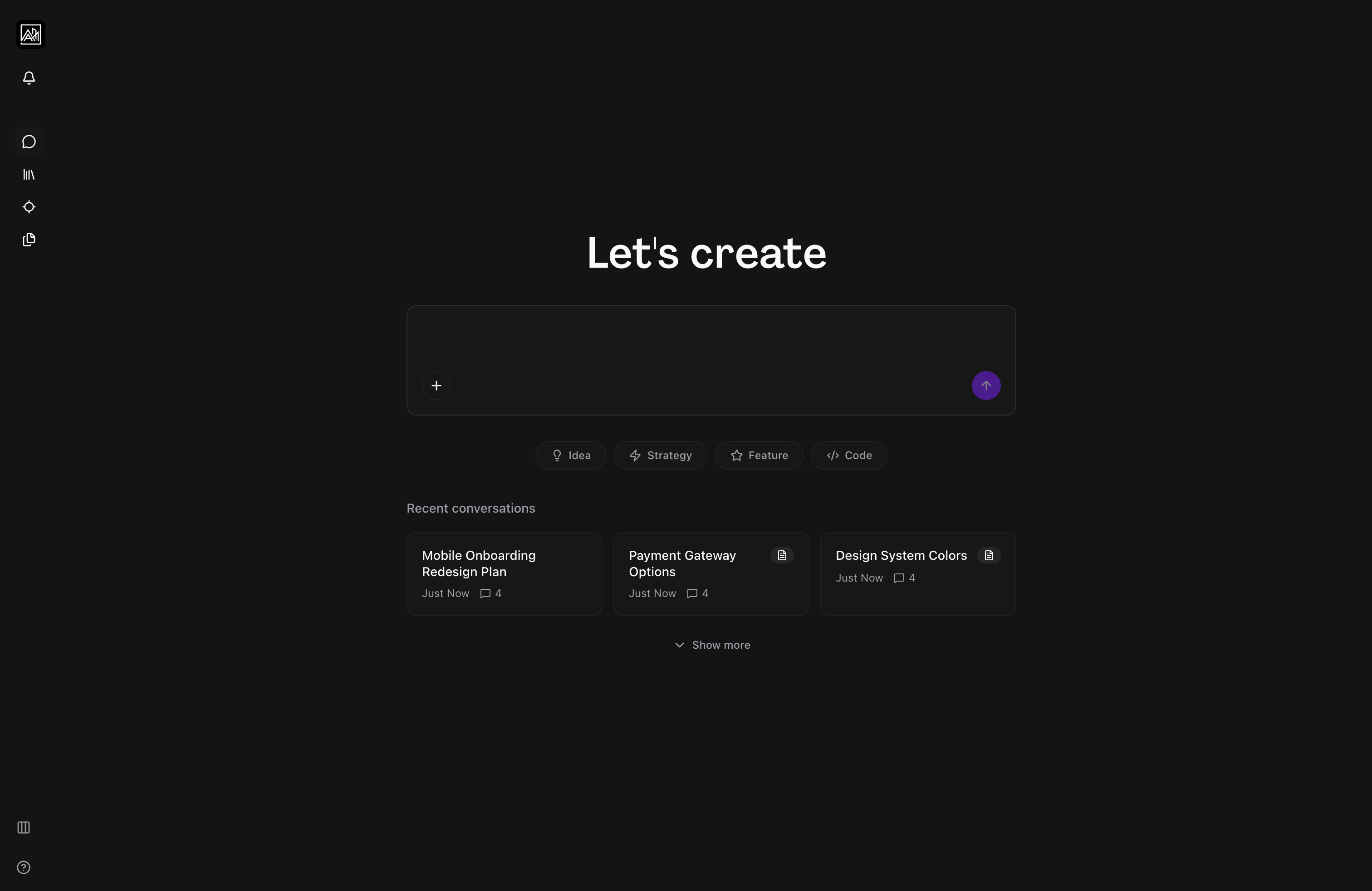
The sidebar is the primary navigation for your workspace. It sits on the left side of the screen and remains visible as you move between sections. On smaller screens it collapses into a navigation menu accessible from the top bar.
Main Navigation
| Item | What It Does |
|---|---|
| New Chat | Opens the conversation view. This is the workspace home — where you talk to the AI assistant, start new conversations, and access your conversation history. |
| Briefs | Lists all briefs in your workspace. Create, filter, and open project briefs from here. |
| Blueprints | Shows your workspace's organizational knowledge documents. Use blueprints to give the AI assistant context about how your team and product work. |
| Skills | Access the Skills and Methods library. This feature may need to be enabled for your workspace. |
Sidebar Footer
At the bottom of the sidebar you will find:
- Column visibility menu — Control which columns appear in list views such as Briefs.
- Help menu — Access support resources and documentation.
Collapsing the Sidebar
Click the collapse control at the edge of the sidebar to minimize it and give more room to the main content area. When collapsed, navigation items show as icons only. Your preference is saved automatically.
Settings Navigation
When you open any settings section, the sidebar switches from the main navigation to a back link labeled Return to Hamster. This keeps it clear that you are in a settings context separate from your day-to-day work. Settings sections include:
- Profile — Your workspace display name, logo, and workspace-level settings.
- Personal Settings — Your individual account preferences, not shared with the team.
- Members — Manage who has access to your workspace and what role they have.
- Billing — Your workspace's subscription plan and payment details.
- Context Settings — Connect external tools and data sources to your workspace.
To return to the main workspace from any settings page, click Return to Hamster at the top of the sidebar.
Switching Workspaces
The account selector at the top of the sidebar shows your current workspace name. Click it to open a dropdown that lists all workspaces you belong to.
Your Personal Workspace
Your personal workspace is tied to your individual account. It is created automatically when you sign up. From your personal workspace you can access your account home and personal settings.
Team Workspaces
Team workspaces are shared environments where multiple people collaborate. Each team workspace has a unique URL slug — a short identifier that appears in the address bar, for example /home/acme-product. When you switch workspaces, Studio preserves your current section where possible. If you are viewing Briefs in one workspace and switch to another, you land on Briefs in the new workspace.
Creating a New Team Workspace
From the account selector dropdown, select Create team. A dialog opens where you name your new workspace. After creating it, you can invite members from the Members page.
This feature may need to be enabled for your workspace.
Notifications
The notification bell appears in the sidebar header when you are in a team workspace. It shows unread notifications for mentions, comments, and activity in your workspace.
Keyboard Shortcuts
Hamster Studio supports keyboard shortcuts for common actions. Press the shortcut shown in the Workspace Shortcuts help section to open the command palette, which lets you jump to any page, brief, or action without using the sidebar.
Mobile Navigation
On mobile devices the sidebar is hidden by default. Tap the navigation icon in the top bar to open the slide-out menu. The top bar shows your workspace name and gives you access to notifications.
Tips
- The URL always shows which workspace you are in — bookmarking specific pages (such as a brief or the Blueprints section) gives you fast access across sessions.
- If you are in settings and want to return to your work, use Return to Hamster in the sidebar rather than the browser's back button to avoid unexpected navigation.
- The Skills item in the sidebar is not visible by default. If your team uses the Skills and Methods library, a workspace administrator needs to enable it.
- When you have many workspaces, the account selector dropdown lists them all. The currently active workspace is highlighted at the top.