AI Responses
How Hamster Studio's AI assistant reads your messages, reasons through them, and replies in real time.
Overview
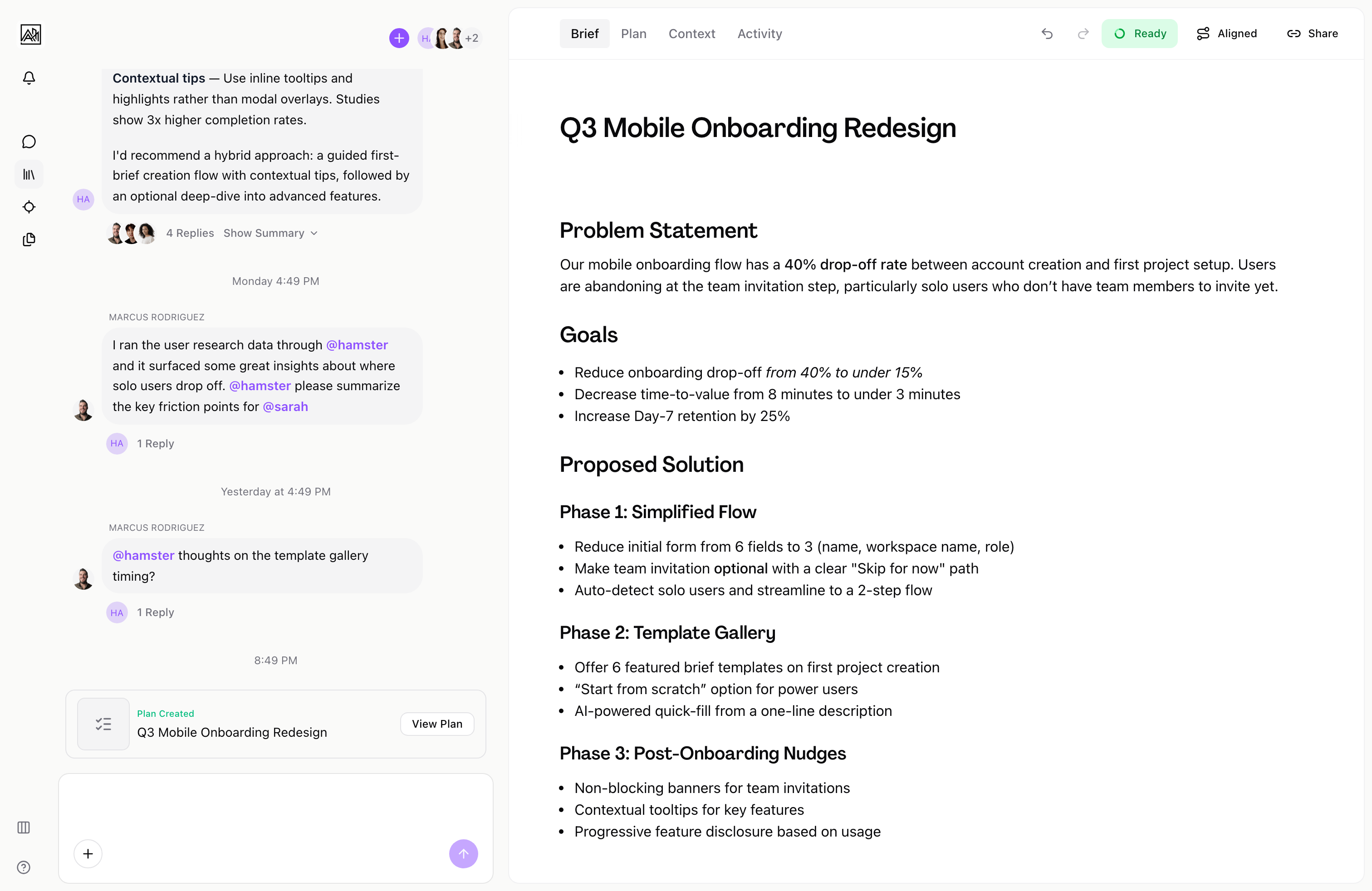
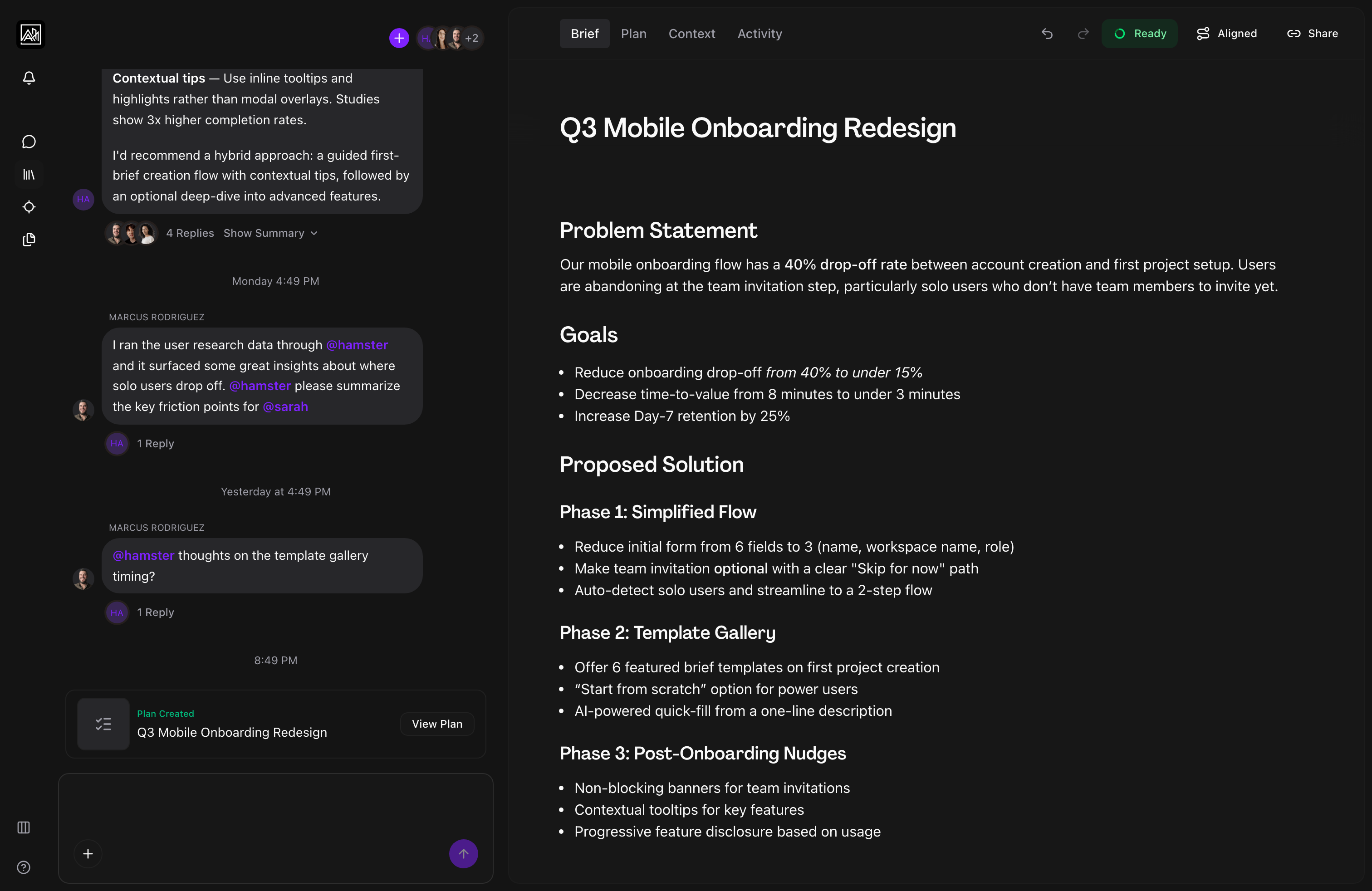
Every message you send in a conversation is handled by an AI assistant that understands the context of your workspace — your briefs, skills, methods, and connected tools. The AI reads your message, decides what to do, and either writes a response, takes an action (such as creating a brief or searching context), or asks follow-up questions to gather the information it needs. Responses stream word-by-word so you see the answer forming, not just a result that appears all at once.
How It Works
-
You send a message — Your message appears in the thread immediately. The AI receives it along with recent conversation history and any relevant workspace context.
-
The AI reasons — Before responding, the AI may work through the problem internally. When extended reasoning is active, a collapsible "Thinking" section appears in the thread. You can expand it to see the AI's reasoning process. This section closes automatically once the final response begins.
-
Actions run if needed — Depending on what you asked, the AI may run tool calls before replying. These appear in the thread as compact status indicators, for example "Searching context…" or "Creating brief…". Each indicator shows whether the action is in progress, completed, or waiting for review.
-
The response streams in — The AI's reply appears token-by-token with a blinking cursor at the end of the current word. Markdown formatting — headings, bullet points, bold text, code blocks — is applied as the text arrives.
-
You review and continue — Once streaming ends, the cursor disappears. If the AI made a document change (such as editing a brief), accept or reject buttons appear so you can review the diff before applying it. Otherwise, you can reply directly and continue the conversation.
Key Capabilities
-
Streaming responses: Replies appear progressively. You can start reading before the AI has finished writing. A blinking cursor marks the active position. Incomplete markdown is rendered gracefully while streaming.
-
Contextual awareness: The AI has access to your recent conversation history within the thread, any documents or skills attached to the current brief, and context from your connected integrations. You do not need to paste background information into every message.
-
Reasoning traces: For complex questions, the AI shows a collapsible "Thinking" section in the thread. This is read-only — it shows the AI's internal process. It helps you understand why the AI took a particular approach.
-
Tool call indicators: When the AI fetches briefs, searches your workspace, creates a document, or performs any other background action, a small indicator appears in the thread. Rejected or failed actions show a retry option.
-
Document change review: If the AI edits a document as part of its response — for example, updating a brief based on what you discussed — an accept/reject interface appears at the bottom of the thread. Accepting applies the changes to the document; rejecting discards them. Changes that were made while you were away show a "View pending changes" prompt before the buttons appear.
-
Follow-up questions: The AI may respond with a set of structured questions when it needs more information before proceeding. These questions appear as a flow in the input area, stepping you through each one in sequence before submitting your answers together.
-
Live voice (This feature may need to be enabled for your workspace.): When enabled, a microphone button appears in the chat input. Hold the button (or use the keyboard shortcut Cmd+Shift+V on Mac, Ctrl+Shift+V on Windows) to speak to the AI using push-to-talk. The AI responds with both text in the thread and synthesised audio.
Tips
- If you want to understand why the AI made a specific decision, expand the "Thinking" section that appears before its response. It will show the reasoning steps it followed.
- When the AI produces a document change, you can click "View Pending Changes" before accepting or rejecting to see a side-by-side diff of what would be modified.
- If an action fails or the AI's document edit looks wrong, use the Reject button and then send a follow-up message describing what you actually wanted.
Related
- Thread Messaging — The full message experience, including file attachments and URL previews
- Thread Branches — Using AI within focused sub-conversations
- AI Features — A broader overview of the AI assistant's capabilities
- Skills and Methods — Customising how the AI works in your workspace